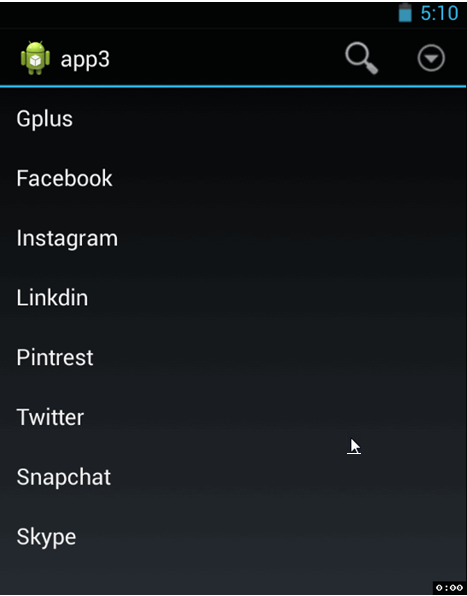
 Search Functionality the best thing we use to find information fast and easy. well in your application if you have long list of information and you want provide search function in your application. it may affect your application credits. user get bored after so much scroll in list. So to add search functionality you have two option One is using Action bar search functionality and Second is alert box that ask for query and then you search on the basis of that. one main thing about this Search function is you have to use in built layout of list view in order to work it (My opinion).
 Steps
- Create New Application and give name it ListViewSearch and Do next.
- minSdkVersion="17”
- targetSdkVersion="17".
- Give activity name - Main.java and main.xml.
- Go to main.xml and paste the below code.
Main.xml
Now Go to menu > main.xml file and put below code in it.
<?xml version="1.0" encoding="utf-8"?>
<menu xmlns:android="http://schemas.android.com/apk/res/android"
    xmlns:app="http://schemas.android.com/apk/res-auto">
    <item
        app:showAsAction="always|collapseActionView"
        android:icon="@android:drawable/ic_menu_search"
        android:id="@+id/menu_item_search"
        android:actionViewClass="android.widget.SearchView"
        android:title="Search"
        android:iconifiedByDefault="true"/>
</menu>
Action bar was introduce in Android 3.0 version so if you are creating app that works on gingerbread and all version you have to add search view above list view or you can use action bar sherlock. you can check out my tutorial on action bar sherlock for more.now go to your class file and put below code.
Main.java
package com.androprogrammer.app3;
import android.os.Bundle;
import android.app.Activity;
import android.app.SearchManager;
import android.content.Context;
import android.text.TextUtils;
import android.view.Menu;
import android.widget.ArrayAdapter;
import android.widget.Filterable;
import android.widget.ListView;
import android.widget.SearchView;
import android.widget.SearchView.OnQueryTextListener;
public class Main extends Activity implements OnQueryTextListener{
 ListView lv;
 CustomAdapter adapter;
 String temp[] = {"Gplus","Facebook","Instagram","Linkdin","Pintrest","Twitter","Snapchat","Skype"};
 @Override
 protected void onCreate(Bundle savedInstanceState) {
  super.onCreate(savedInstanceState);
  setContentView(R.layout.main);
  lv = (ListView) findViewById(R.id.listView1);
  lv.setAdapter(new ArrayAdapter < string >(getApplicationContext(),android.R.layout.simple_list_item_1,temp));
  lv.setTextFilterEnabled(true);
 }
 @Override
 public boolean onCreateOptionsMenu(Menu menu) {
  // Inflate the menu; this adds items to the action bar if it is present.
  getMenuInflater().inflate(R.menu.main, menu);
  SearchManager searchManager = (SearchManager) getSystemService( Context.SEARCH_SERVICE );
        SearchView searchView = (SearchView) menu.findItem(R.id.menu_item_search).getActionView();
        searchView.setSearchableInfo(searchManager.getSearchableInfo(getComponentName()));
        searchView.setSubmitButtonEnabled(true);
        searchView.setOnQueryTextListener(this);
        return super.onCreateOptionsMenu(menu);
 }
 @Override
 public boolean onQueryTextChange(String newText)
 {
  // this is your adapter that will be filtered
      if (TextUtils.isEmpty(newText))
      {
            lv.clearTextFilter();
        }
      else
      {
            lv.setFilterText(newText.toString());
        }
      return true;
 }
 @Override
 public boolean onQueryTextSubmit(String query) {
  // TODO Auto-generated method stub
  return false;
 }
}
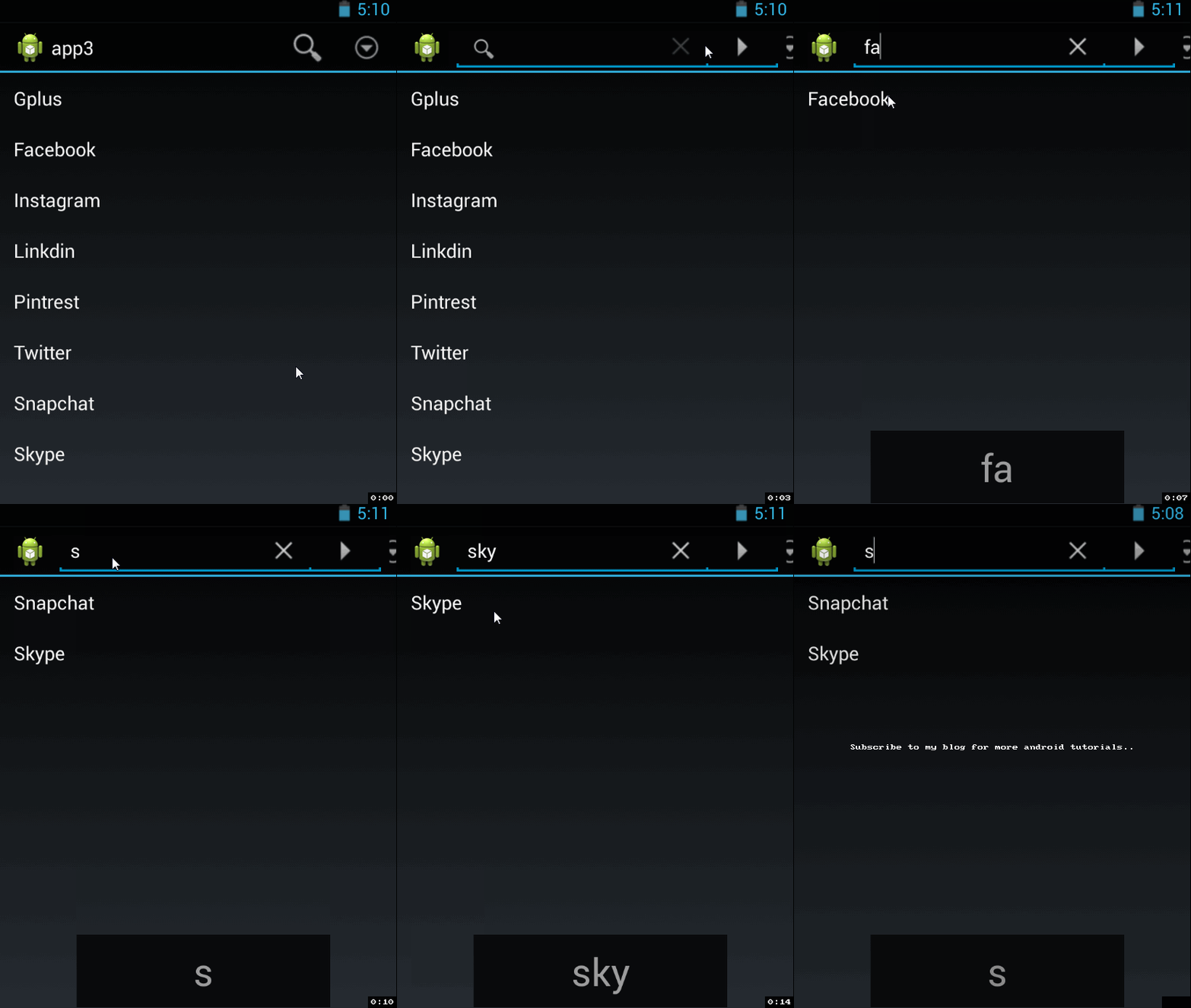
Screen ShotAs you can see your query display in below Box and it also filter your list view adapter. that's it now run your application and see it works with your tweak or not. if you have any query or problem with it post it in below comment box. i have solved many problems that are still on stack overflow and many forums. you can suggest or share this link with your friends.
if you like the blog subscribe to our blog or like us on facebook or Google+.
Keep coding..
Download Code