Showing posts with label Libraries Demo. Show all posts

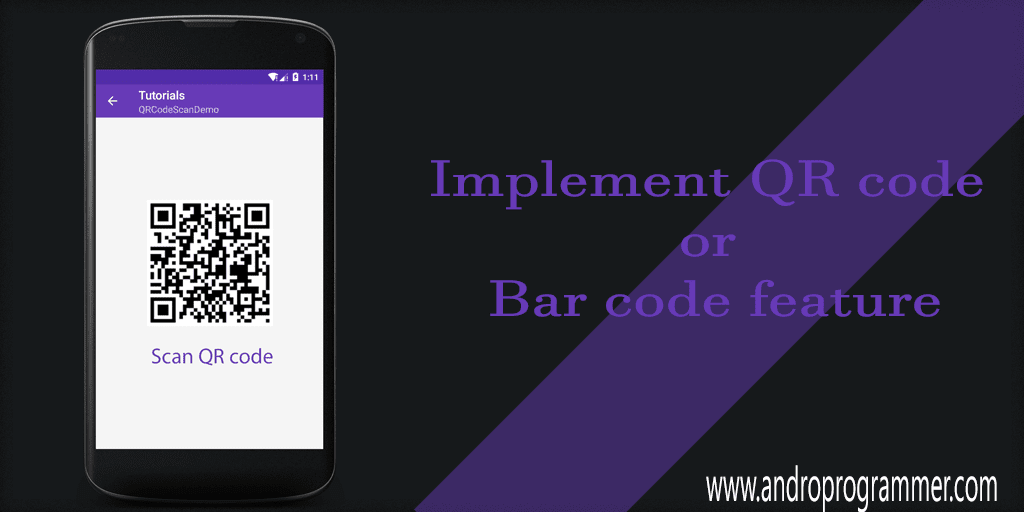
Detect QR Code Using Google Play Service Library

In Google play service v7.8 goole developers have provided Api for Barcode & QR Code detection. Now it as been improved with new features like OCR and Object tracking and Face detection. Recently usage of QR code and Barcode scan using smart phones has become so common. So google developers have come up with official solution as Mobile Vision Api. The Mobile vision api supports both 1D and 2D bar codes, in a number of sub formats. like EAN-13, EAN-8, UPC-A, QR Code, Data Matrix etc.

Mobile vision api has following benefits. which makes it best available option for scanning QR and Barcode

- Fast and reliable,
- Works Offline,
- Can read barcode in any orientation (Orientation free) and
- Multiple barcode scan feature at the same time.

In one tutorial we can not cover all scanning options so we will create sample which scan QR code and Data Matrix using device's camera.

Note:
As this sample is part of my full project Tutorial. You may find some methods directly used from BaseActivity so please check out full project on Github.

androprogrammer.com


Please follow all steps to get expected outcome using Mobile vision api.

Step - 1

Add Vision package only from google play service

compile "com.google.android.gms:play-services-vision:10.2.4"

Step - 2
Add permission and meta in AndroidManifest file.

<uses-feature android:name="android.hardware.camera" />
<!-- put under application tag -->
<meta-data
    android:name="com.google.android.gms.vision.DEPENDENCIES"
    android:value="barcode" />

In value attribute you can use these 3 different values.

- barcode
- face
- ocr 

Step - 3
As we have taken SurfaceView to display camera output you can add custom controls over camera preview. 

<?xml version="1.0" encoding="utf-8"?>
<android.support.design.widget.CoordinatorLayout
    xmlns:android="http://schemas.android.com/apk/res/android"
    android:id="@+id/layout_barcodeReader_container"
    android:layout_width="match_parent"
    android:layout_height="match_parent"
    >
  <LinearLayout
      android:layout_width="match_parent"
      android:layout_height="match_parent"
      android:orientation="vertical"
      >
    <SurfaceView
        android:layout_width="match_parent"
        android:layout_height="match_parent"
        android:id="@+id/camera_view_barcode"
        />
  </LinearLayout>
</android.support.design.widget.CoordinatorLayout>

Step - 4
To read QR code or Barcode data we have to use BarcodeDetector class and BarcodeDetector.Builder class for configuration. Using Inbuilt camera, library scan QR codes and using native library for parsing it gives data from the QR code. In this tutorial i have set Barcode detector to read QR code and Barcode ISBN code using setBarcodeFormats() method of builder class. you can set different formats as per your requirement.

QRCodeScanDemo.java

package com.androprogrammer.tutorials.samples;
import android.Manifest;
import android.annotation.SuppressLint;
import android.content.Context;
import android.content.Intent;
import android.content.IntentFilter;
import android.content.pm.PackageManager;
import android.os.Build;
import android.os.Bundle;
import android.support.annotation.NonNull;
import android.support.design.widget.CoordinatorLayout;
import android.support.design.widget.Snackbar;
import android.support.v4.app.ActivityCompat;
import android.transition.Explode;
import android.transition.Transition;
import android.util.Log;
import android.util.SparseArray;
import android.view.LayoutInflater;
import android.view.SurfaceHolder;
import android.view.SurfaceView;
import android.view.View;
import android.view.Window;
import com.androprogrammer.tutorials.R;
import com.androprogrammer.tutorials.activities.Baseactivity;
import com.androprogrammer.tutorials.util.Common;
import com.google.android.gms.vision.CameraSource;
import com.google.android.gms.vision.Detector;
import com.google.android.gms.vision.barcode.Barcode;
import com.google.android.gms.vision.barcode.BarcodeDetector;
import java.io.IOException;
import butterknife.Bind;
import butterknife.ButterKnife;
public class QRCodeScanDemo extends Baseactivity {
 // permission request codes need to be < 256
 private static final int RC_HANDLE_CAMERA_PERM = 11;
 private View viewLayout;
 @Bind(R.id.layout_barcodeReader_container)
 CoordinatorLayout layoutBarcodeReaderContainer;
 @Bind(R.id.camera_view_barcode)
 SurfaceView cameraViewBarcode;
 private CameraSource mCameraSource;
 private static final String TAG = "BarcodeReaderActivity";
 @Override
 protected void onCreate(Bundle savedInstanceState) {
  if (Build.VERSION.SDK_INT >= Build.VERSION_CODES.LOLLIPOP) {
   getWindow().requestFeature(Window.FEATURE_CONTENT_TRANSITIONS);
   //set the transition
   Transition ts = new Explode();
   ts.setDuration(5000);
   getWindow().setEnterTransition(ts);
   getWindow().setExitTransition(ts);
  }
  super.onCreate(savedInstanceState);
  // base class methods
  setSimpleToolbar(true);
  setToolbarElevation(getResources().getDimension(R.dimen.elevation_normal));
  setToolbarSubTittle(this.getClass().getSimpleName());
  // To display back arrow
  getSupportActionBar().setDisplayHomeAsUpEnabled(true);
  setReference();
 }
 @Override
 public void setReference() {
  viewLayout = LayoutInflater.from(this).inflate(R.layout.activity_qr_codescan_demo, container);
  ButterKnife.bind(this, viewLayout);
  // Check for the camera permission before accessing the camera.  If the
  // permission is not granted yet, request permission.
  int rc = ActivityCompat.checkSelfPermission(this, Manifest.permission.CAMERA);
  if (rc == PackageManager.PERMISSION_GRANTED) {
   createCameraSource(true);
  } else {
   requestCameraPermission();
  }
 }
 /**
  * Handles the requesting of the camera permission.  This includes
  * showing a "Snackbar" message of why the permission is needed then
  * sending the request.
  */
 private void requestCameraPermission() {
  Log.w(TAG, "Camera permission is not granted. Requesting permission");
  final String[] permissions = new String[]{Manifest.permission.CAMERA};
  if (!ActivityCompat.shouldShowRequestPermissionRationale(this,
    Manifest.permission.CAMERA)) {
   ActivityCompat.requestPermissions(this, permissions, RC_HANDLE_CAMERA_PERM);
   return;
  }
  View.OnClickListener listener = new View.OnClickListener() {
   @Override
   public void onClick(View view) {
    ActivityCompat.requestPermissions(QRCodeScanDemo.this, permissions, RC_HANDLE_CAMERA_PERM);
   }
  };
  layoutBarcodeReaderContainer.setOnClickListener(listener);
  Snackbar.make(layoutBarcodeReaderContainer, R.string.permission_camera_rationale,
    Snackbar.LENGTH_INDEFINITE).setAction(android.R.string.ok, listener).show();
 }
 /**
  * Callback for the result from requesting permissions. This method
  * is invoked for every call on {@link #requestPermissions(String[], int)}.
  * <p>
  * <strong>Note:</strong> It is possible that the permissions request interaction
  * with the user is interrupted. In this case you will receive empty permissions
  * and results arrays which should be treated as a cancellation.
  * </p>
  *
  * @param requestCode  The request code passed in {@link #requestPermissions(String[], int)}.
  * @param permissions  The requested permissions. Never null.
  * @param grantResults The grant results for the corresponding permissions
  *                     which is either {@link PackageManager#PERMISSION_GRANTED}
  *                     or {@link PackageManager#PERMISSION_DENIED}. Never null.
  * @see #requestPermissions(String[], int)
  */
 @Override
 public void onRequestPermissionsResult(int requestCode, @NonNull String[] permissions,
                                        @NonNull int[] grantResults) {
  if (requestCode != RC_HANDLE_CAMERA_PERM) {
   Log.d(TAG, "Got unexpected permission result: " + requestCode);
   super.onRequestPermissionsResult(requestCode, permissions, grantResults);
   return;
  }
  if (grantResults.length != 0 && grantResults[0] == PackageManager.PERMISSION_GRANTED) {
   Log.d(TAG, "Camera permission granted - initialize the camera source");
   // permission granted, so create the camera source
   createCameraSource(true);
   return;
  }
  Log.e(TAG,
    "Permission not granted: results len = " + grantResults.length + " Result code = "
      + (grantResults.length > 0 ? grantResults[0] : "(empty)"));
 }
 /**
  * Creates and starts the camera.  Note that this uses a higher resolution in comparison
  * to other detection examples to enable the barcode detector to detect small barcodes
  * at long distances.
  * <p>
  * Suppressing InlinedApi since there is a check that the minimum version is met before using
  * the constant.
  */
 @SuppressLint("InlinedApi")
 private void createCameraSource(boolean autoFocus) {
  Context context = getApplicationContext();
  // A barcode detector is created to track barcodes.  An associated multi-processor instance
  // is set to receive the barcode detection results, track the barcodes, and maintain
  // graphics for each barcode on screen.  The factory is used by the multi-processor to
  // create a separate tracker instance for each barcode.
  BarcodeDetector barcodeDetector =
    new BarcodeDetector.Builder(context)
      .setBarcodeFormats(Barcode.QR_CODE | Barcode.ISBN)
      .build();
  if (!barcodeDetector.isOperational()) {
   Log.w(TAG, "Detector dependencies are not yet available.");
   // Check for low storage.  If there is low storage, the native library will not be
   // downloaded, so detection will not become operational.
   IntentFilter lowstorageFilter = new IntentFilter(Intent.ACTION_DEVICE_STORAGE_LOW);
   boolean hasLowStorage = registerReceiver(null, lowstorageFilter) != null;
   if (hasLowStorage) {
    Common.showToast(this, getString(R.string.low_storage_error));
    Log.w(TAG, getString(R.string.low_storage_error));
   }
  }
  cameraViewBarcode.getHolder().addCallback(new SurfaceHolder.Callback() {
   @Override
   public void surfaceCreated(SurfaceHolder holder) {
    try {
     mCameraSource.start(cameraViewBarcode.getHolder());
    } catch (IOException ie) {
     Log.e("CAMERA SOURCE ERROR", ie.getMessage());
    }
   }
   @Override
   public void surfaceChanged(SurfaceHolder holder, int format, int width, int height) {
   }
   @Override
   public void surfaceDestroyed(SurfaceHolder holder) {
    mCameraSource.stop();
   }
  });
  barcodeDetector.setProcessor(new Detector.Processor<Barcode>() {
   @Override
   public void release() {
   }
   @Override
   public void receiveDetections(Detector.Detections<Barcode> detections) {
    final SparseArray<Barcode> barcodes = detections.getDetectedItems();
    if (barcodes.size() != 0) {
     Snackbar.make(layoutBarcodeReaderContainer, barcodes.valueAt(0).displayValue,
       Snackbar.LENGTH_INDEFINITE).show();
    }
   }
  });
  // Creates and starts the camera.  Note that this uses a higher resolution in comparison
  // to other detection examples to enable the barcode detector to detect small barcodes
  // at long distances.
  CameraSource.Builder builder =
    new CameraSource.Builder(getApplicationContext(), barcodeDetector).setFacing(
      CameraSource.CAMERA_FACING_BACK)
      .setRequestedPreviewSize(640, 480)
      .setRequestedFps(15.0f);
  // make sure that auto focus is an available option
  if (Build.VERSION.SDK_INT >= Build.VERSION_CODES.ICE_CREAM_SANDWICH) {
   builder.setAutoFocusEnabled(autoFocus);
  }
  mCameraSource = builder.build();
 }
}

Final lines

As google play services available on around 80-90% devices in the market it is easy and safe to use as compare to other options available to perform same task.

That's it from my side. now run the app and see the result. if you have any query or suggestion please let me know in below comment box.

keep coding... :) 
 
Source code

Dependency Injection Using Dagger2

Android Application depends on different different components or on modules. Yes your whole application have lots of dependency like you require network component in many screens (Activities or Fragments) or  User data, Preference Data in app etc you get from some other class or object that can be dependency. your class depends upon some particular class which provide data to you and then you can process data or information. these are the just examples components you need to make better and best apps.

But we developer know how painful it is to write code for declaration and initialization and then also check for null (nightmare for java developers). in every class or whenever you need some information from the other class you have to do these things.
What if this things done by some magic :).

Well there is no such thing like magic in programming. So you have to do it by your own or you can use dependency injector library Dagger2. Which will create object graph and then inject required object in dependent class. If you don't know much more about Dagger2 check out my previous post Guide For Dependency Injection Using Dagger2. 


In this tutorial I am going to demonstrate sample app which i have created using Dagger2 , Volley and Gson.

Why volley ?
When you search for dagger2 samples on internet you will find lots of tutorials with Retrofit but what if i don't use retrofit. It is good library but require lots of boiler plate code for big apps (Too many interface when apps get bigger).

androprogrammer.com


Ok Shut up and show me code...

First of all create Module Class with whatever dependency you want to inject using this Module. Create methods and use @Provides annotation for methods so dagger2 will understand which object you want to provide.

package com.androprogrammer.dagger2sample.domain.di.modules;
import android.content.Context;
import com.google.gson.FieldNamingPolicy;
import com.google.gson.Gson;
import com.google.gson.GsonBuilder;
import com.androprogrammer.dagger2sample.domain.network.NetworkManager;
import javax.inject.Singleton;
import dagger.Module;
import dagger.Provides;
@Module
public class NetModule {
    private Context context;
    public NetModule(Context ctx) {
        this.context = ctx;
    }
    @Provides  // Dagger will only look for methods annotated with @Provides
    @Singleton
    NetworkManager provideNetworkManager() {
        NetworkManager networkManager = NetworkManager.getInstance(context);
        return networkManager;
    }
    @Provides  // Dagger will only look for methods annotated with @Provides
    @Singleton
    Gson provideGson() {
        GsonBuilder gsonBuilder = new GsonBuilder();
        gsonBuilder.setFieldNamingPolicy(FieldNamingPolicy.LOWER_CASE_WITH_UNDERSCORES);
        gsonBuilder.excludeFieldsWithoutExposeAnnotation();
        return gsonBuilder.create();
    }
}

Ok now create interface for this Module which will work as component for it. in the example i have created DashboardActivityComponent which having only one method inject. Inject method is require in component because in that you will pass context (Fragment or Activity) in which you want to perform injection. dependent classes which require object from different modules. check below code for further understanding.


package com.androprogrammer.dagger2sample.domain.di.components;
import com.androprogrammer.dagger2sample.domain.di.modules.AppModule;
import com.androprogrammer.dagger2sample.domain.di.modules.NetModule;
import com.androprogrammer.dagger2sample.ui.fragments.UserListFragment;
import javax.inject.Singleton;
import dagger.Component;
@Singleton
@Component(modules =  {NetModule.class, AppModule.class})
public interface DashboardActivityComponent {
    void inject(UserListFragment fragment);
}

UserListFragment.java
package com.androprogrammer.dagger2sample.ui.fragments;
import android.content.SharedPreferences;
import android.os.Bundle;
import android.support.annotation.Nullable;
import android.support.v7.widget.RecyclerView;
import android.text.TextUtils;
import android.util.Log;
import android.view.LayoutInflater;
import android.view.View;
import android.view.ViewGroup;
import android.widget.LinearLayout;
import android.widget.TextView;
import com.android.volley.Request;
import com.google.gson.Gson;
import com.google.gson.reflect.TypeToken;
import com.androprogrammer.dagger2sample.AppController;
import com.androprogrammer.dagger2sample.R;
import com.androprogrammer.dagger2sample.domain.adapters.DashBoardListAdapter;
import com.androprogrammer.dagger2sample.domain.listeners.RequestListener;
import com.androprogrammer.dagger2sample.domain.listeners.RowItemElementClickListener;
import com.androprogrammer.dagger2sample.domain.network.NetworkManager;
import com.androprogrammer.dagger2sample.domain.network.RequestBuilder;
import com.androprogrammer.dagger2sample.domain.util.Utility;
import com.androprogrammer.dagger2sample.models.UserDataResponse;
import java.lang.reflect.Type;
import java.util.ArrayList;
import java.util.List;
import javax.inject.Inject;
import butterknife.BindView;
import butterknife.ButterKnife;
/**
 * Created by wasim on 8/1/2016.
 */
public class UserListFragment extends BaseFragment implements RequestListener {
 @BindView(R.id.recycler_users)
 RecyclerView recyclerUsers;
 @BindView(R.id.tv_noData)
 TextView tvNoData;
 @BindView(R.id.layout_data)
 LinearLayout layoutData;
 @BindView(R.id.layout_progress)
 LinearLayout layoutProgress;
 private View view;
 @Inject
 SharedPreferences sharedPreferences;
 @Inject
 NetworkManager networkManager;
 @Inject
 Gson gsonParser;
 private List<UserDataResponse> mUserData;
 private DashBoardListAdapter mAdapter;
 private int reqId = -1;
 private static final String TAG = "UserListFragment";
 @Override
 public void onCreate(Bundle savedInstanceState) {
  super.onCreate(savedInstanceState);
  //Log.d(TAG, "oncreate");
 }
 @Override
 public View onCreateView(LayoutInflater inflater, ViewGroup container,
                          Bundle savedInstanceState) {
  // Inflate the layout for this fragment
  view = inflater.inflate(R.layout.fragment_userlist, container, false);
  initializeView();
  return view;
 }
 @Override
 public void onViewCreated(View view, @Nullable Bundle savedInstanceState) {
  super.onViewCreated(view, savedInstanceState);
  userList();
 }
 @Override
 public void onStop() {
  networkManager.removeListeners(this);
  super.onStop();
 }
 private void initializeView() {
  ButterKnife.bind(this, view);
  ((AppController) getActivity().getApplication()).getmNetComponent().inject(this);
 }
 private void userList() {
  networkManager.addListener(this);
  networkManager.isProgressVisible(true);
  reqId = networkManager.addRequest(RequestBuilder.getRequestParameter(null), getActivity(),
    TAG, Request.Method.GET, RequestBuilder.SERVER_URL_API);
 }
 @Override
 public void onSuccess(int id, String response) {
  try {
   if (!TextUtils.isEmpty(response)) {
    if (id == reqId) {
     Log.d(TAG, response);
     Type listType = new TypeToken<ArrayList<UserDataResponse>>() {
     }.getType();
     mUserData = gsonParser.fromJson(response, listType);
     if (mUserData != null) {
      mAdapter = new DashBoardListAdapter(getActivity(), mUserData);
      mAdapter.setAnimateItems(true);
      recyclerUsers.setAdapter(mAdapter);
      mAdapter.setAnimateItems(false);
     } else {
      recyclerUsers.setVisibility(View.GONE);
      tvNoData.setVisibility(View.VISIBLE);
     }
    }
   }
  } catch (Exception e) {
   e.printStackTrace();
  }
 }
 @Override
 public void onError(int id, String message) {
  Utility.showToast(getContext(), message);
  //Log.d(TAG, "onError: " + message);
 }
 @Override
 public void onStartLoading(int id) {
  layoutData.setVisibility(View.GONE);
  layoutProgress.setVisibility(View.VISIBLE);
 }
 @Override
 public void onStopLoading(int id) {
  layoutProgress.setVisibility(View.GONE);
  layoutData.setVisibility(View.VISIBLE);
 }
}

I have used NetModule (Volley class object , Gson class object) and DashboardComponent in this fragment. I have created sample user list using some open api. For full application code you can check out below github link. as i am also learning about Dagger2 and its sub component and much more i will post more on Dagger2 in future. so if you find this helpful and don't want to miss about Dagger2 subscribe to my blog for more updates.

Keep coding...

Source Code

Guide For Dependency Injection Using Dagger2


Hey! Finally I decided that now a good time to get back to the blog and share what I have dealing with for last few weeks. Well I am working on Dependency injection using Dagger 2. So let's start with it what it is Dagger 2 ? and why you require to learn. during this process of learning i have googled it lot but i couldn't find proper explanation about this library and from where to start with it. So i thought it would be good if i write some thing simpler that helps others in understanding WTF going on.


Dependency Injection Using Dagger2


Quick Overview

Dagger 2 is dependency injection framework. if you don't know about dependency injection you should check this video. Dagger2 is developed by Google and it is a forked from Dagger 1. which was created by Square.

In Dagger 1 All this process happens at run time. while in case of Dagger 2 all: graph validation, configurations done at compile time.

Dagger 2 generally for code generation and is based on annotations (explained below). During program execution object graph gets created by your application. And using abstraction your application create such a dynamic flow by observing object interactions.

Dagger 1 and 2 are based on standard set of annotations (and one interface). use on injectable classes in order to to maximize re usability, test ability and maintainability of java code.

I won't talk more about Dagger 1 because it is now no more in use because Dagger2 have increased speed in injection and also allows the use of proguard.

Annotations

@Scope: Scopes are very useful and powerful way to define scope or let's say availability of any particular object. Dagger 2 has a more concrete way to do scoping through custom annotations. It can be @PerActivity, @PerFragment etc. By default it provide only @singletone scope for root component. We will see this in an example later on.

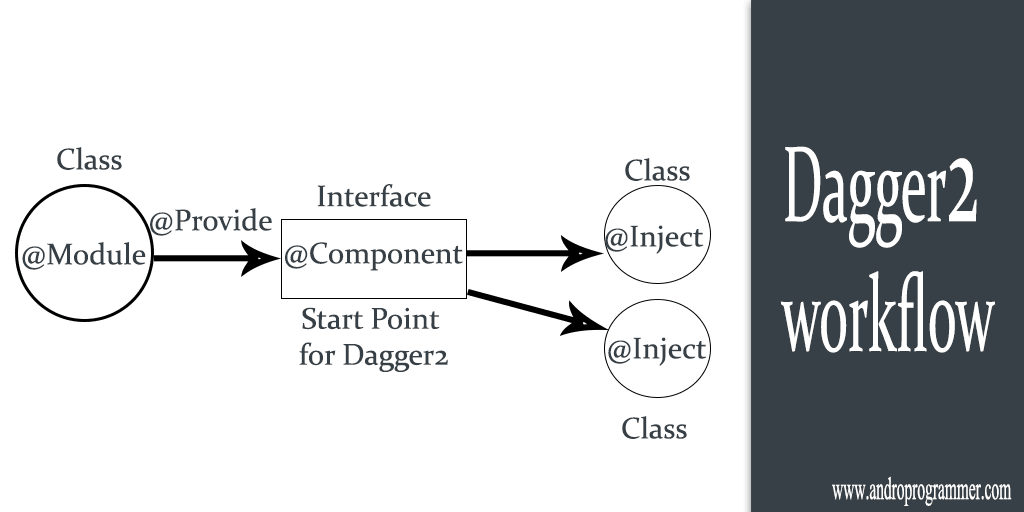
@Module: Used in classes and methods which provide dependencies. Module class provide all the dependency objects when you require and when you use @Inject annotation.

@Provide: Inside modules we define methods containing this annotation which tells Dagger how we want to construct and provide those mentioned dependencies. it i used in Module class to provide particular object.

@Inject: Request dependencies. It an be used on a constructor, a field, or a method. Dagger2 will inject object into class from specific modules.

@Component: It is main an interface from where dagger2 create object graph for module and injected classes. It enable selected modules and used for performing dependency injection. Such an interface is used by Dagger 2 to generate code.

These are the common but not all annotations for Dagger2. but for starting with it you have to learn this much only. later on next part of tutorial i will go in deeper. this is just for staring and understanding purpose. because i think its good to know how library works and weather it is useful to you or not. in next tutorial i will explain how you can add Dagger2 into your project and from simple object injection to more complex structure for dependency injection.

The official source for Dagger 2, with some documentation of it’s own:
http://google.github.io/dagger/.

Keep coding...

Social SignIn [Part - 2] - Fabric SDK For Twitter Login

Fabric SDK is newer SDK introduced by Twitter for Mobile Integration. Fabric SDK comes with many combined projects like Twitter Authentication For Twitter API, Crashlytics For crash reports and analysis, MoPub for advertisement etc. Before this sdk or alternative of this is Twitter4J library for Twitter API.

androprogrammer.com


This is 2nd Part of tutorial series so i am not going through all project setup steps you can find it at Social SignIn [Part - 1] - Integrate Google plus in Android App. To add Twitter authentication in your application you have to create application at Fabric.io and you can configure about which project you want to integrate into your project from Fabric sdk. Once you completely create application it will even help you to integrate Fabric sdk using Android Studio Plugins.

Once it gets installed  you can see icons like this image in toolbar. 

Just click on it and it will start like setup wizard you just have to click next. if you don't have developer account it will even create for you from Android Studio Plugin.


Wow That's easy... right ?

No, once you integrate all those things into project you might come across gradle error like this.
Error:Execution failed for task ':app:fabricGenerateResourcesDebug'.
> Crashlytics Developer Tools error.
Don't worry just comment this line in app > build.gradle file.
apply plugin: 'io.fabric'

If you only want to add Twitter login then only comment it. if you want other packages also then you have to use Fabric sdk. So now setup is done now let's see how you can add twitter button in your layout. If you want same twitter button added by Fabric sdk in your project you can skip this step. In this tutorial i have created TwitterLoginHelper class which actually does all things for me and for my view it just return result of that. But with TwitterLoginButton you don't have to do any thing. it has setCallBack method which allows you to get result into activity. but i am following MVP where my view don't know about callbacks and all it just consume result after all manipulation. Have look at my TwitterLoginHelper class.

TwitterLoginHelper.java 
package com.androprogrammer.socialsignin.util.helpers;
import android.content.Intent;
import android.support.v7.app.AppCompatActivity;
import android.util.Log;
import com.androprogrammer.socialsignin.listeners.SocialConnectListener;
import com.androprogrammer.socialsignin.model.UserLoginDetails;
import com.twitter.sdk.android.Twitter;
import com.twitter.sdk.android.core.Callback;
import com.twitter.sdk.android.core.Result;
import com.twitter.sdk.android.core.TwitterException;
import com.twitter.sdk.android.core.TwitterSession;
import com.twitter.sdk.android.core.identity.TwitterAuthClient;
import com.twitter.sdk.android.core.services.AccountService;
/**
 * Created by Wasim on 24-Jan-16.
 */
public class TwitterLoginHelper {
    private TwitterAuthClient client;
    private AppCompatActivity activity;
    private UserLoginDetails userData;
    private SocialConnectListener userCallbackListener;
    private int identifier;
    private static final String TAG = "TwitterLoginHelper";
    public void createConnection(AppCompatActivity mActivity) {
        this.activity = mActivity;
        userData = new UserLoginDetails();
        client = new TwitterAuthClient();
    }
    public TwitterAuthClient getClient() {
        return client;
    }
    public void onActivityResult(int requestCode,int resultCode, Intent data) {
        client.onActivityResult(requestCode,resultCode,data);
    }
    public void signIn(final int mIdentifier) {
        if (client != null)
        {
            identifier = mIdentifier;
            client.authorize(activity, new Callback <twittersession>() {
                @Override
                public void success(Result <twittersession> twitterSessionResult) {
                    Log.d(TAG, "Logged with twitter");
                    final TwitterSession session = twitterSessionResult.data;
                    AccountService ac = Twitter.getApiClient(twitterSessionResult.data).getAccountService();
                    ac.verifyCredentials(true, true, new Callback <com .twitter.sdk.android.core.models.user>() {
                        @Override
                        public void success(Result <com .twitter.sdk.android.core.models.user> result) {
                            userData.setIsSocial(true);
                            userData.setIsAndroid(true);
                            userData.setTwittersLogin(true);
                            userData.setTwitterID(String.valueOf(session.getUserId()));
                            userData.setFullName(result.data.name);
                            //userData.setEmail(result.data.email);
                            userData.setEmail(getUserEmail(session));
                            userData.setUserImageUrl(result.data.profileImageUrl);
                            if (userCallbackListener != null)
                            {
                                userCallbackListener.onUserConnected(identifier,userData);
                            }
                        }
                        @Override
                        public void failure(TwitterException e) {
                            if (userCallbackListener != null)
                            {
                                userCallbackListener.onConnectionError(identifier,e.getMessage());
                            }
                        }
                    });
                    /**/
                }
                @Override
                public void failure(TwitterException e) {
                    Log.e(TAG, "Failed login with twitter");
                    e.printStackTrace();
                    if (userCallbackListener != null)
                    {
                        userCallbackListener.onConnectionError(identifier,e.getMessage());
                    }
                }
            });
        }
    }
    public void signOut()
    {
        Twitter.getSessionManager().clearActiveSession();
    }
    public void setUserCallbackListener(SocialConnectListener userCallbackListener) {
        this.userCallbackListener = userCallbackListener;
    }
    private String getUserEmail(TwitterSession session)
    {
        final String[] userEmail = new String[1];
        client.requestEmail(session, new Callback <string>() {
            @Override
            public void success(Result <string> result) {
                // Do something with the result, which provides the email address
                Log.d(TAG,"Email found - " + result.toString());
                userEmail[0] = result.data;
            }
            @Override
            public void failure(TwitterException exception) {
                // Do something on failure
                Log.d(TAG,"Email not found - " + exception.getMessage());
                userEmail[0] = "";
            }
        });
        return userEmail[0];
    }
}

This class actually does every thing for me and it is like central class for all operation of Twitter. you can create method here for getTweets or user timeline etc. benefits of such way is you don't have to create Twitter client object for different task into different classes. To get user email your app has to be on their whitlist applications.  To request email you have to submit this form.

Well now have look at below code where you can see how i have user this class.

private void startTwitterLogin() {
 Log.d("onclick", "clicked");
 if (Utility.isConnectivityAvailable(LoginActivity.this)) {
  runOnUiThread(new Runnable() {
   @Override
   public void run() {
    layout_full_twitter.setBackgroundColor(getResources().getColor(R.color.view_disable));
    layout_full_twitter.setEnabled(false);
    layout_twitter.setVisibility(View.GONE);
    pb_twitterLoader.setVisibility(View.VISIBLE);
   }
  });
  twitterHelper.createConnection(LoginActivity.this);
  twitterHelper.signIn(TWITTER_SIGN_IN);
 } else {
  Utility.showToast(LoginActivity.this,getString(R.string.msg_noInternet));
 }
}

So That's it from my side. this tutorial only covers Twitter authentication but for more like get tweets or timeline or post tweet etc subscribe to our news latter so you can get more tutorials in your inbox.

I have created this project in Kotlin language also so if you want please check out here.

Source Code

Keep coding... :)

Social SignIn [Part - 1] - Integrate Google plus in Android App

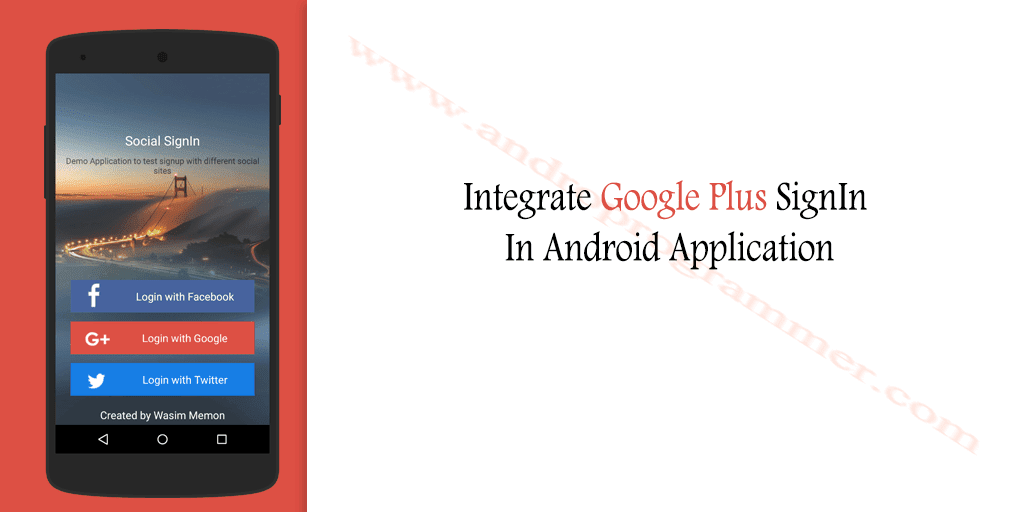
Signup with different social sites are now common. I think almost 50% applications now have options to login with different social sites like Google Plus, Facebook, Twitter etc. And one more thing makes this things required or integrated in so much apps are Rest Api or SDK provided by such platforms is very handy and easy to integrate. They even now handle sessions by them self so now you don't have to worry about user session.

androprogrammer.com


Pr-requisite
1. Project setup in Google Developer console. more details
2. Enable Google plus Api for your project. more details


So Let's start project, i hope you have already setup project which is going to use Google plus(Google Account) login. So add below code in your app/build.gradle file. you only require this part of Google play service in dependency tag so just add this only. Google play service is huge library so if you are adding full library, make sure you require all those things in your app. if not just add parts of it which is required.

app/build.gradle
compile 'com.google.android.gms:play-services-auth:8.3.0'
That's it. In Google Play Service 8.3 they have added this part which is for just google login and getting basic user data. before Google Play Service 8.3 you have to use Google plus part of play service to login and get user data but now it is separated from it. so if you want user data like cover photo, user dob, user friend circle etc then you have to add compile 'com.google.android.gms:play-services-plus:8.3.0' also in build file.

To Login with Google and get user data i have create a helper class which actually do all the staff for me and return user data or error if any by SocialConnectListener interface. go through below code and you will see how you can write less code in your activity class and get desired result.

GooglePlusLoginHelper.java
package com.androprogrammer.socialsignin.util.helpers;
import android.content.Intent;
import android.support.v7.app.AppCompatActivity;
import android.util.Log;
import com.androprogrammer.socialsignin.listeners.SocialConnectListener;
import com.androprogrammer.socialsignin.model.UserLoginDetails;
import com.androprogrammer.socialsignin.util.Utility;
import com.google.android.gms.auth.api.Auth;
import com.google.android.gms.auth.api.signin.GoogleSignInAccount;
import com.google.android.gms.auth.api.signin.GoogleSignInOptions;
import com.google.android.gms.auth.api.signin.GoogleSignInResult;
import com.google.android.gms.common.ConnectionResult;
import com.google.android.gms.common.Scopes;
import com.google.android.gms.common.api.GoogleApiClient;
import com.google.android.gms.common.api.OptionalPendingResult;
import com.google.android.gms.common.api.ResultCallback;
import com.google.android.gms.common.api.Scope;
/**
 * Created by Wasim on 06-Dec-15.
 */
public class GooglePlusLoginHelper implements GoogleApiClient.OnConnectionFailedListener {
 private AppCompatActivity activity;
 private UserLoginDetails userData;
 private SocialConnectListener userCallbackListener;
 /* Client for accessing Google APIs */
 private static GoogleApiClient mGoogleApiClient;
 private int requestIdentifier = 0;
 private static final String TAG = "GooglePlusLoginHelper";
 public void createConnection(AppCompatActivity mActivity)
 {
  this.activity = mActivity;
  userData = new UserLoginDetails();
  if (Utility.checkPlayServices(mActivity)) {
   GoogleSignInOptions gso = new GoogleSignInOptions.Builder(GoogleSignInOptions.DEFAULT_SIGN_IN)
     .requestScopes(new Scope(Scopes.PROFILE))
     .requestScopes(new Scope(Scopes.PLUS_LOGIN))
     .requestProfile()
     .requestEmail()
     .build();
   if (mGoogleApiClient == null) {
    // START create_google_api_client
    // Build GoogleApiClient with access to basic profile
    mGoogleApiClient = new GoogleApiClient.Builder(mActivity)
      .enableAutoManage(mActivity,this)
      .addApi(Auth.GOOGLE_SIGN_IN_API, gso)
      .build();
   }
  }
 }
 public void onActivityResult(int resultCode,Intent data)
 {
  GoogleSignInResult result = Auth.GoogleSignInApi.getSignInResultFromIntent(data);
  handleSignInResult(result);
 }
 // START signIn
 public void signIn(int identifier) {
  requestIdentifier = identifier;
  Intent signInIntent = Auth.GoogleSignInApi.getSignInIntent(mGoogleApiClient);
  activity.startActivityForResult(signInIntent, requestIdentifier);
 }
 // Sign out
 public void signOut() {
  if (mGoogleApiClient != null) {
   if(!mGoogleApiClient.isConnecting()){
    mGoogleApiClient.connect();
   }
   mGoogleApiClient.disconnect();
   Utility.showToast(activity, "You are logged out successfully");
  }
 }
 public SocialConnectListener getUserCallbackListener() {
  return userCallbackListener;
 }
 public void setUserCallbackListener(SocialConnectListener userCallbackListener) {
  this.userCallbackListener = userCallbackListener;
 }
 public void handleSignInResult(GoogleSignInResult result) {
  Log.d(TAG, "handleSignInResult:" + result.isSuccess());
  if (result.isSuccess()) {
   // Signed in successfully, show authenticated UI.
   GoogleSignInAccount acct = result.getSignInAccount();
   if (acct != null) {
    userData.setFullName(acct.getDisplayName());
    userData.setGoogleID(acct.getId());
    userData.setEmail(acct.getEmail());
    if (acct.getPhotoUrl() != null) {
     userData.setUserImageUri(acct.getPhotoUrl().toString());
    }
    userData.setIsGplusLogin(true);
    userData.setIsSocial(true);
    if (userCallbackListener != null) {
     userCallbackListener.onUserConnected(requestIdentifier,userData);
    }
   }
  }
 }
 @Override
 public void onConnectionFailed(ConnectionResult connectionResult) {
  Log.d(TAG, "onConnectionFailed:" + connectionResult);
  if (userCallbackListener != null)
  {
   userCallbackListener.onConnectionError(requestIdentifier,connectionResult.getErrorMessage());
  }
 }
}

In above code i have passed activity object in place of context but when you call connect method you will get response in onActivityResult for which you have to cast context to activity. check below code for LoginActivty in which i require user data. which actually initiate login request.

LoginActivity.java
package com.androprogrammer.socialsignin.activities;
import android.content.Intent;
import android.graphics.PorterDuff;
import android.os.Bundle;
import android.support.v7.app.AppCompatActivity;
import android.util.Log;
import android.view.View;
import android.view.WindowManager;
import android.widget.LinearLayout;
import android.widget.ProgressBar;
import com.androprogrammer.socialsignin.R;
import com.androprogrammer.socialsignin.listeners.SocialConnectListener;
import com.androprogrammer.socialsignin.model.UserLoginDetails;
import com.androprogrammer.socialsignin.util.PreferenceManager;
import com.androprogrammer.socialsignin.util.Utility;
import com.androprogrammer.socialsignin.util.helpers.GooglePlusLoginHelper;
import java.util.ArrayList;
import butterknife.Bind;
import butterknife.ButterKnife;
import butterknife.OnClick;
public class LoginActivity extends AppCompatActivity implements SocialConnectListener {
 // Google Plus Login
 @Bind(R.id.layout_gplustext) LinearLayout layout_gplus;
 @Bind(R.id.layout_full_gplus) LinearLayout layout_full_gplus;
 @Bind(R.id.pb_gplusloading) ProgressBar pb_gpLoader;
 /* RequestCode for sign-in */
 private static final int GPLUS_SIGN_IN = 1001;
 private GooglePlusLoginHelper gplusHelper;
 @Override
 protected void onCreate(Bundle savedInstanceState) {
  super.onCreate(savedInstanceState);
  getWindow().setFlags(
    WindowManager.LayoutParams.FLAG_FULLSCREEN,
    WindowManager.LayoutParams.FLAG_FULLSCREEN);
  setContentView(R.layout.activity_login);
  ButterKnife.bind(this);
  gplusHelper = new GooglePlusLoginHelper();
  gplusHelper.setUserCallbackListener(this);
  pb_gpLoader.getIndeterminateDrawable().setColorFilter(getResources().getColor(R.color.colorPrimary),
    PorterDuff.Mode.SRC_IN);
 }
 @OnClick(R.id.layout_full_gplus) void clicked() {
  // clicked on google plus login
  if (Utility.isConnectivityAvailable(LoginActivity.this)) {
   runOnUiThread(new Runnable() {
    @Override
    public void run() {
     layout_full_gplus.setBackgroundColor(getResources().getColor(R.color.view_disable));
     layout_full_gplus.setEnabled(false);
     layout_gplus.setVisibility(View.GONE);
     pb_gpLoader.setVisibility(View.VISIBLE);
    }
   });
   gplusHelper.createConnection(LoginActivity.this);
   gplusHelper.signIn(GPLUS_SIGN_IN);
  } else {
   Utility.showToast(LoginActivity.this,"No internet connection available...");
  }
 }
 @Override
 protected void onActivityResult(int requestCode, int resultCode, Intent data) {
  if (requestCode == GPLUS_SIGN_IN) {
   gplusHelper.onActivityResult(resultCode, data);
  }
 }
 @Override
 public void onUserConnected(int requestIdentifier,UserLoginDetails userData) {
  if (requestIdentifier == GPLUS_SIGN_IN) {
   runOnUiThread(new Runnable() {
    @Override
    public void run() {
     layout_full_gplus.setBackgroundColor(getResources().getColor(R.color.bg_gplus));
     layout_full_gplus.setEnabled(true);
     layout_gplus.setVisibility(View.VISIBLE);
     pb_gpLoader.setVisibility(View.GONE);
     // For sign out 
     PreferenceManager.preferencePutInteger(getResources().getString(R.string.pref_login_identifier),
       GPLUS_SIGN_IN);
    }
   });
  }
  Utility.showToast(LoginActivity.this, "connected");
  PreferenceManager.preferencePutBoolean(getResources().getString(R.string.pref_is_loggedin),true);
  Intent MainScreen = new Intent(LoginActivity.this,MainActivity.class);
  Bundle b = new Bundle();
  b.putSerializable(getResources().getString(R.string.key_userModel),userData);
  MainScreen.putExtra(getResources().getString(R.string.key_userBundle), b);
  startActivity(MainScreen);
  overridePendingTransition(R.anim.right_slide_in, 0);
 }
 @Override
 public void onConnectionError(int requestIdentifier,String message) {
  Utility.showToast(LoginActivity.this, message);
  if (requestIdentifier == GPLUS_SIGN_IN) {
   runOnUiThread(new Runnable() {
    @Override
    public void run() {
     layout_full_gplus.setBackgroundColor(getResources().getColor(R.color.bg_gplus));
     layout_full_gplus.setEnabled(true);
     layout_gplus.setVisibility(View.VISIBLE);
     pb_gpLoader.setVisibility(View.GONE);
    }
   });
  }
 }
 @Override
 public void onCancelled(int requestIdentifier,String message) {
  Utility.showToast(LoginActivity.this, message);
 }
}


I hope this is how social connect libraries works on mobile platform. they allow us to implement some interface and they pass data through it. so you can even now create own library or framework if your using more then one platform. if you want other social connect tutorials also please subscribe to our news latter because my new article will be on facebook or twitter. so i hope you can find latest code in your inbox.

From coding point of view it is done but still you have to add Get Account permission in your manifest. and if you want your app works on Android new version Marshmallow you have to ask for permission runtime. because GET_ACCOUNTS permission is in danger permissions list. 

    <uses-permission android:name="android.permission.INTERNET"/>
    <uses-permission android:name="android.permission.ACCESS_NETWORK_STATE"/>
    <uses-permission android:name="android.permission.ACCESS_WIFI_STATE"/>
    <uses-permission android:name="android.permission.GET_ACCOUNTS"/>

I have created this project in Kotlin language also so if you want please check out here.

Source Code

Keep coding... :)

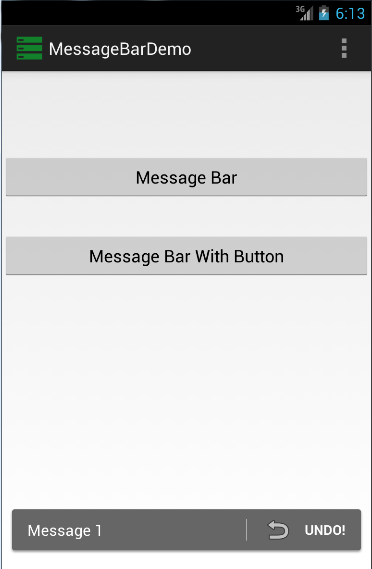
Change Old Toast Message With Message Bar

Message Bar Library is Best Replacement For Old Toast message in android. you have seen Square Toast message in Gmail application when you Delete Mail from the list. That kind of Toast Message you can display.
You want decent or same look of Toast message in all android versions because Google Developer Change GUI component in each and every version. so your app look will change in all different version of Android Operating System. This is very simple and customize-able Toast message. you can customize its layout as per your application layout. To add this library download It from here. If you don't know how to add library in project you can check out my tutorial Add Action bar in Any Android Application And Apply same method for Add this library in your project.

To Display Message you have to call Show() method of Message Bar Library.here i have Written tutorial for you so you can easily add these in your application.
MessageBarDemo.java  

package com.example.samplecollection;
import android.os.Bundle;
import android.app.Activity;
import android.view.Menu;
import android.view.View;
import android.widget.Button;
import net.simonvt.messagebar.*;
public class MessageBarDemo extends Activity {
 Button bt1, bt2;
 MessageBar mb;
 private int mCount;
 @Override
 protected void onCreate(Bundle savedInstanceState) {
  super.onCreate(savedInstanceState);
  setContentView(R.layout.message_bar_demo);
  bt1 = (Button) findViewById(R.id.button1);
  bt2 = (Button) findViewById(R.id.button2);
  mb = new MessageBar(this);
  bt1.setOnClickListener(new View.OnClickListener() {
   @Override
   public void onClick(View v) {
    // TODO Auto-generated method stub
    mb.show("Simple Message Bar...");
   }
  });
  bt2.setOnClickListener(new View.OnClickListener() {
   @Override
   public void onClick(View v) {
    // TODO Auto-generated method stub
    Bundle b = new Bundle();
                b.putInt("count", mCount);
                mb.show("Message " + mCount, "Button!", android.R.drawable.ic_menu_revert, b);
                mCount++;
   }
  });
 }
}

Note - One More Thing you have to do is add following style in your project\ values\ styles.xml file.
 <item name="messageBarContainerStyle">@style/MessageBar.Container</item>        <item name="messageBarTextStyle">@style/MessageBar.Message</item>        <item name="messageBarButtonStyle">@style/MessageBar.Button</item>
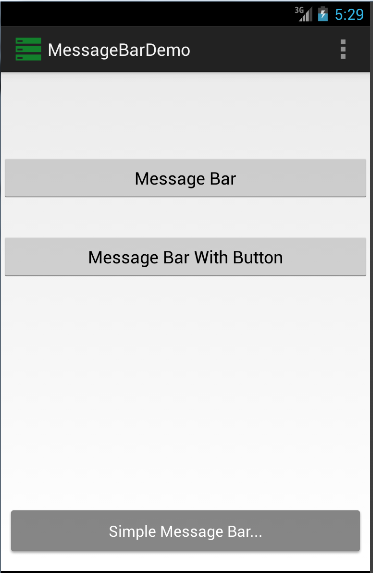
Screen Shots


These Library is developed by Simon Vig Therkildsen. and all credit goes to him. and if any thing occur or if you have any question regarding library you can ask here. For More Advance Libraries and Tutorials Subscribe to our blog.

Keep Coding..