Showing posts with label Settings. Show all posts

Check Internet Connectivity Status in Android.

To Access Web Services or Internet connection you required to check weather connection is available or not. so to check how you can do this read my this article in which i will help you to get connection status in your application. there are no of ways to get connectivity status like broadcast receiver , back ground service etc. but in this example i am using connectivity manager class which allow to use connection service in our application. 

Step -1  : Create New Android application and give name ConnectivityDemo to main activity and same name for layout file. minSdkVersion="17” and targetSdkVersion="17".you can use below android version also for compilation and build option.

Step-2 : in your connectivitydemo.xml file put the below code in it. in this layout file i have used two buttons but if you won't require it you can skip this step.
ConnectivityDemo.xml


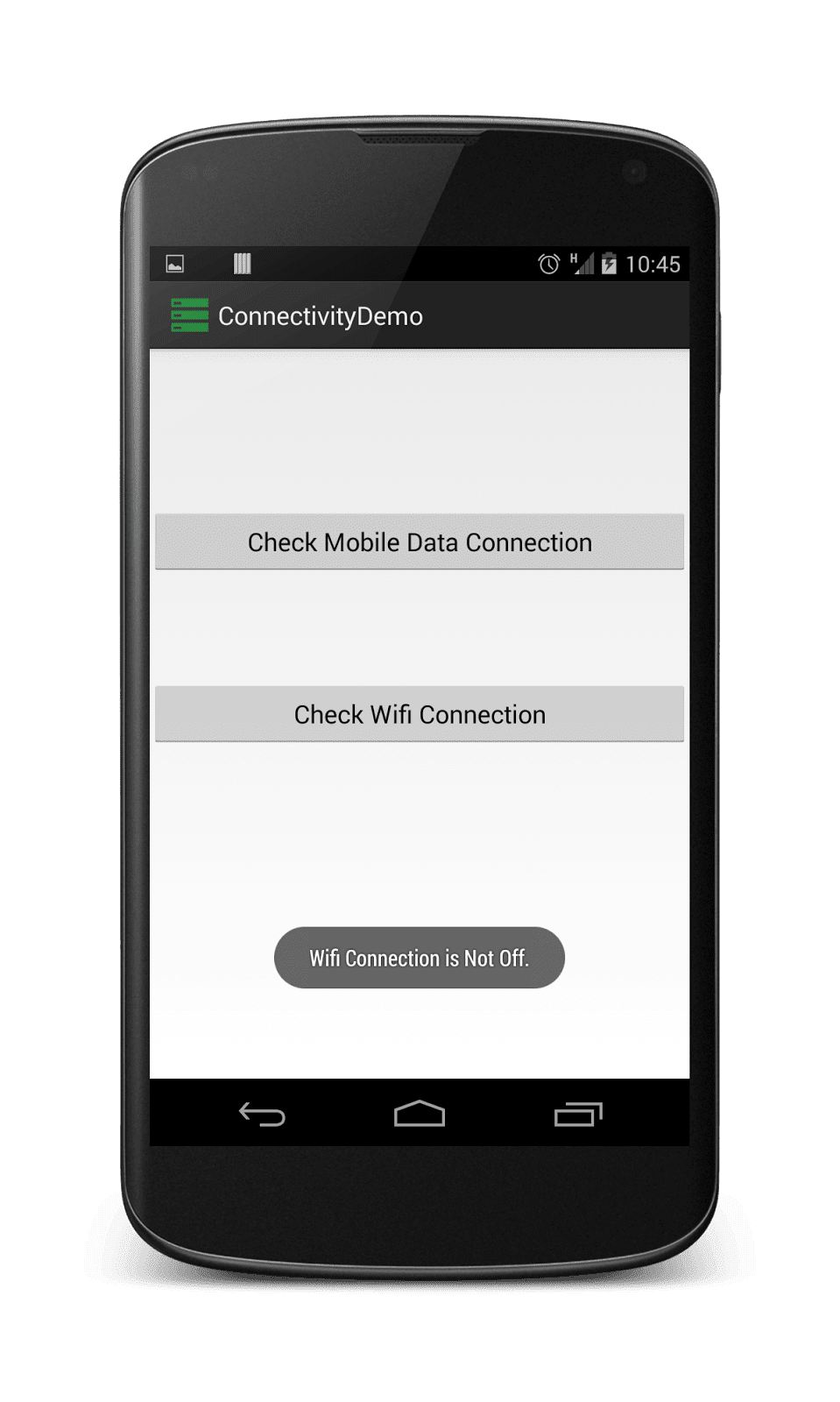
Step-3 : Above layout File having one button for checking mobile data connection and one is for wifi connection.  now put below code in ConnectivityDemo.java file.
ConnectivityDemo.java

package com.example.samplecollection;
import android.os.Bundle;
import android.app.Activity;
import android.view.Menu;
import android.view.View;
import android.view.View.OnClickListener;
import android.widget.Button;
import android.widget.Toast;
public class ConnectivityDemo extends Activity implements OnClickListener{
 Button MobileData,wifi;
 boolean status;
 CheckForConnection cf;
 @Override
 protected void onCreate(Bundle savedInstanceState) {
  super.onCreate(savedInstanceState);
  setContentView(R.layout.connectivity_demo);
  setRef();
 }
 private void setRef()
 {
  // TO set Refrence to the xml button object.
  MobileData = (Button) findViewById(R.id.CD_bt_mdata);
  wifi = (Button) findViewById(R.id.CD_bt_wifi);
  MobileData.setOnClickListener(this);
  wifi.setOnClickListener(this);
 }
 @Override
 public void onClick(View v)
 {
  // Get Which button is clicked by user
  switch (v.getId())
  {
   case R.id.CD_bt_mdata:
    cf = new CheckForConnection();
    status = cf.getMobileDataStatus(ConnectivityDemo.this);
    if(status)
     Toast.makeText(ConnectivityDemo.this,"Data Connection is On.", Toast.LENGTH_LONG).show();
    else
     Toast.makeText(ConnectivityDemo.this,"Data Connection is Off", Toast.LENGTH_LONG).show();
   break;
   case R.id.CD_bt_wifi:
    cf= new CheckForConnection();
    status = cf.getWifiStatus(ConnectivityDemo.this);
    if(status)
     Toast.makeText(ConnectivityDemo.this,"Wifi Connection is On.", Toast.LENGTH_LONG).show();
    else
     Toast.makeText(ConnectivityDemo.this,"Wifi Connection is Off.", Toast.LENGTH_LONG).show();
   break;
  default:
   break;
  }
 }
}

Step-4 : i have created another class CheckForConnection which actually check weather mobile data or wifi is on or not. in android you can not do network connectivity task on main thread so to perform network task i have created this class. this is the main and handy point because if you create Broad cast Receiver you have to register it and you have to add entry in manifest file also but if you forget any of this its like a burden for you. and if you create service in your application it runs continuously. so that's why i choose this way  to make yor work easy. now create new class CheckForConnection.java. and copy below code in it.
CheckForConnection.java

package com.example.samplecollection;
import android.content.Context;
import android.net.ConnectivityManager;
import android.net.NetworkInfo;
public class CheckForConnection
{
    public static boolean getWifiStatus(Context context) 
    {
        // To get System Connectivity status
     ConnectivityManager cm = (ConnectivityManager) context
                .getSystemService(Context.CONNECTIVITY_SERVICE);
        NetworkInfo activeNetwork = cm.getActiveNetworkInfo();
        if (null != activeNetwork)
        {
         // Check For Wifi Status 
            if(activeNetwork.getType() == ConnectivityManager.TYPE_WIFI)
                return true;
            else
             return false;
        } 
        return false;
    }
    public static boolean getMobileDataStatus(Context context) 
    {
        // To get System Connectivity status
     ConnectivityManager cm = (ConnectivityManager) context
                .getSystemService(Context.CONNECTIVITY_SERVICE);
        NetworkInfo activeNetwork = cm.getActiveNetworkInfo();
        if (null != activeNetwork)
        {
         // Check For Mobile Data Status  
            if(activeNetwork.getType() == ConnectivityManager.TYPE_MOBILE)
                return true;
            else
             return false;
        } 
        return false;
    }
}


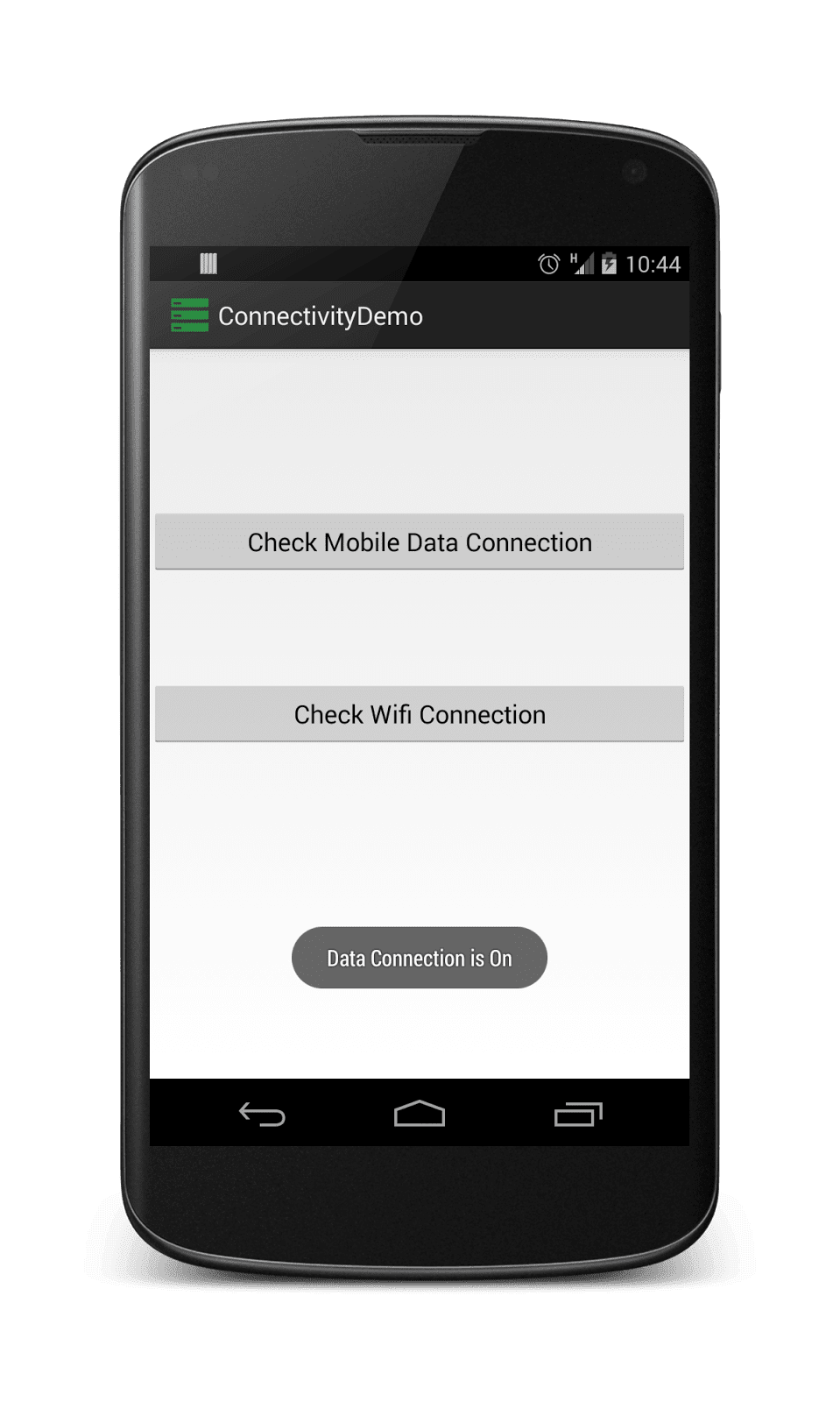
Screen Shots


Now just run your application and check weather it works.  i hope you understand the way i have done this so you can implement in your application. if you have any query or problem ask in below comment box.

Keep coding...
How To Set Wall Paper Progrmatically (Coding) ?

You have changed your wall paper many times but have you think how that application do all this for you. So today in this tutorial I will cover how you can select wallpaper from gallery and then set it as your home screen wall paper.

In this tutorial I am taking picture from gallery and then you can select as your wall paper.
How to get image from gallery in Image View ? OR 
How to Open Gallery for image Selection ?
To make it easy just go through full tutorial and you will also add this feature in your app.

You may like these tutorials

Steps

  1. Create New Application and give name it what ever you like and Do next. 
    1. minSdkVersion="17” 
    2. targetSdkVersion="17". 
  2. Give activity name
  3. Go to xml file and paste the below code.

activity_setwallpaper_demo.xml  

<RelativeLayout xmlns:android="http://schemas.android.com/apk/res/android"
    xmlns:tools="http://schemas.android.com/tools"
    android:layout_width="match_parent"
    android:layout_height="match_parent"
    android:paddingBottom="@dimen/activity_vertical_margin"
    android:paddingLeft="@dimen/activity_horizontal_margin"
    android:paddingRight="@dimen/activity_horizontal_margin"
    android:paddingTop="?attr/actionBarSize"
    tools:context="com.androprogrammer.tutorials.samples.SetWallpaperDemo">
    <ImageView
        android:id="@+id/imageView1"
        android:layout_width="match_parent"
        android:layout_height="wrap_content"
        android:scaleType="center"
        android:padding="@dimen/padding_normal"
        android:src="@mipmap/ic_launcher"
        android:layout_centerHorizontal="true"
        android:layout_marginTop="10dp"/>
    <LinearLayout
        android:layout_width="match_parent"
        android:layout_height="wrap_content"
        android:orientation="vertical"
        android:padding="@dimen/padding_normal"
        android:layout_alignParentBottom="true">
        <Button
            android:id="@+id/bt_imagepicker"
            android:layout_width="match_parent"
            android:layout_height="wrap_content"
            android:text="@string/str_opengallary"/>
        <Button
            android:id="@+id/bt_setwallpaper"
            android:layout_width="match_parent"
            android:layout_height="wrap_content"
            android:text="@string/str_setwallpaper"/>
    </LinearLayout>
</RelativeLayout>

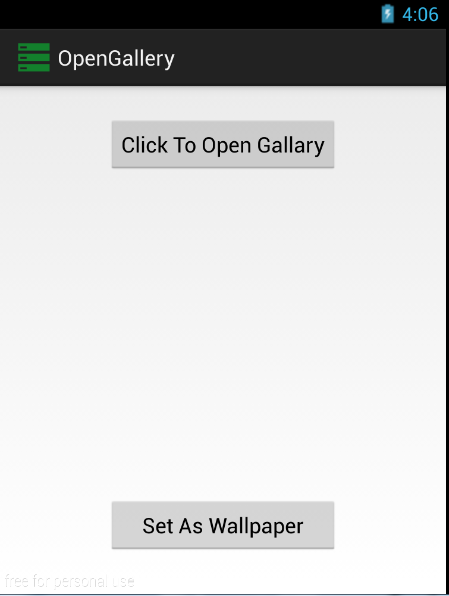
Above layout file consist of 2 Buttons and Image View so just copy above code and paste in your project xml(Activity layout) file.Now Copy Below code and Paste in your java file.

SetWallpaperDemo.java  

package com.androprogrammer.tutorials.samples;
import android.content.Intent;
import android.database.Cursor;
import android.graphics.Bitmap;
import android.graphics.BitmapFactory;
import android.net.Uri;
import android.os.Build;
import android.provider.MediaStore;
import android.view.LayoutInflater;
import android.view.MenuItem;
import android.view.View;
import android.view.Window;
import android.widget.Button;
import android.widget.ImageView;
import com.androprogrammer.tutorials.R;
import com.androprogrammer.tutorials.activities.Baseactivity;
import java.io.IOException;
public class SetWallpaperDemo extends Baseactivity implements View.OnClickListener {
    protected View view;
    protected static final int SELECT_PICTURE = 1;
    protected String SelectedimagePath;
    protected Button bt1,bt2;
    protected ImageView iv1;
    protected Bitmap bmp;
    @Override
    protected void onCreate(Bundle savedInstanceState) {
        super.onCreate(savedInstanceState);
        setReference();
        setToolbarElevation(7);
        setToolbarSubTittle(this.getClass().getSimpleName());
        getSupportActionBar().setDisplayHomeAsUpEnabled(true);
    }
    @Override
    public void setReference() {
        view = LayoutInflater.from(this).inflate(R.layout.activity_setwallpaper_demo,container);
        bt1 = (Button) view.findViewById(R.id.bt_imagepicker);
        bt2 = (Button) view.findViewById(R.id.bt_setwallpaper);
        iv1 = (ImageView) view.findViewById(R.id.imageView1);
        bt1.setOnClickListener(this);
        bt2.setOnClickListener(this);
    }
    private String getPath(Uri getImageuri)
    {
        if(getImageuri == null)
        {
            return null;
        }
        String [] Projection = {MediaStore.Images.Media.DATA};
        Cursor cursor = managedQuery(getImageuri, Projection, null, null, null);
        if(cursor != null)
        {
            int c_index = cursor.getColumnIndexOrThrow(MediaStore.Images.Media.DATA);
            cursor.moveToFirst();
            cursor.getString(c_index);
            cursor.close();
        }
        return getImageuri.getPath();
    }
    @Override
    public boolean onOptionsItemSelected(MenuItem item) {
        // Handle action bar item clicks here. The action bar will
        // automatically handle clicks on the Home/Up button, so long
        // as you specify a parent activity in AndroidManifest.xml.
        switch (item.getItemId()) {
            // Respond to the action bar's Up/Home button
            case android.R.id.home:
                finish();
                // NavUtils.navigateUpFromSameTask(this);
                // return true;
                break;
        }
        return super.onOptionsItemSelected(item);
    }
    @Override
    public void onClick(View v) {
        switch (v.getId())
        {
            case R.id.bt_imagepicker:
                Intent gallery = new Intent();
                gallery.setType("image/*");
                gallery.setAction(Intent.ACTION_GET_CONTENT);
                startActivityForResult(Intent.createChooser(gallery, "Select Picture"),SELECT_PICTURE);
                break;
            case R.id.bt_setwallpaper:
                try {
                    getApplicationContext().setWallpaper(bmp);
                } catch (IOException e) {
                    // TODO Auto-generated catch block
                    e.printStackTrace();
                }
                break;
        }
    }
    @Override
    protected void onActivityResult(int requestCode, int resultCode, Intent data) {
        // TODO Auto-generated method stub
        if (resultCode == RESULT_OK) {
            if (requestCode == SELECT_PICTURE) {
                Uri getImageuri = data.getData();
                SelectedimagePath = getPath(getImageuri);
                if (bmp != null && bmp.isRecycled()) {
                    bmp = null;
                }
                bmp = BitmapFactory.decodeFile(SelectedimagePath);
                iv1.setImageBitmap(bmp);
            }
        }
    }
}

Well see above code and you can see I have used in built media provider for getting image path(absolute path). in order to change wall paper you have to add following permission in your application.

<uses-permission android:name="android.permission.SET_WALLPAPER"/>

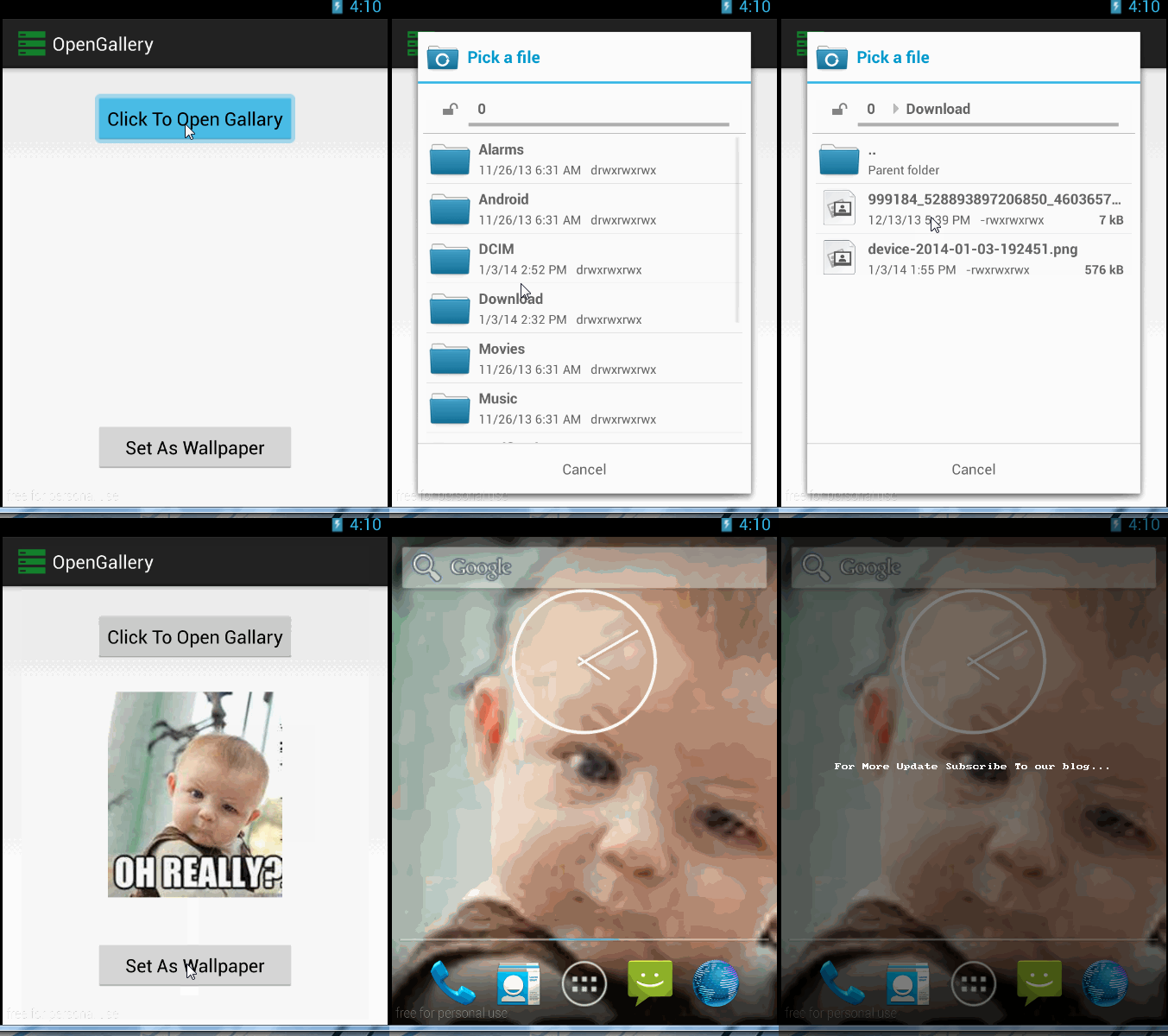
Screen Shot


So that’s it now run your app and make sure in emulator you have no images so run it in your own device or any other emulator. I have done it any checked also. But if you have any question or query ask in below comment box.

Keep coding..

How To Get Battery State/level (Percentage) in Android ?

To Get Battery state or percentage of charging in android is really easy using Battery Manager class of Android framework.you can get battery percentage,last charged and all other information using Battery Manager class. 

To get This information i have created two methods. one is for getting percentage and another one is for getting charging state of phone. weather it is connected to charger or usb cable that will be also checked in this method.

Steps

  1. Create New Application and give name it GetBattery and Do next. 
    1. minSdkVersion="17” 
    2. targetSdkVersion="17". 
  2. Give activity name - Main.java and main.xml. 
  3. Go to main.xml and paste the below code.

main.xml


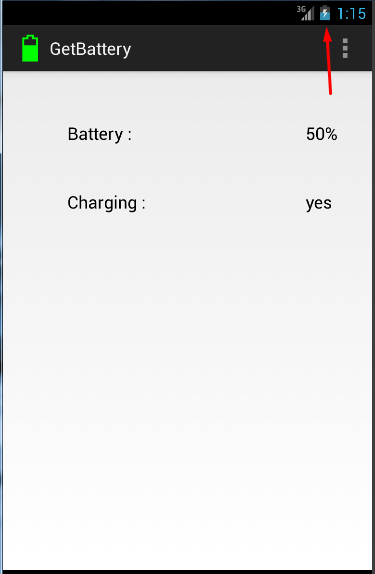
Well now Layout is set for your application. i used simple 4 textview for displaying battery percentage and charging status but you can use it in your application as you want.now paste below code in your java class file to get desired output.
Main.java
package com.androprogrammer.getbattery;
import android.app.Activity;
import android.content.BroadcastReceiver;
import android.content.Context;
import android.content.Intent;
import android.content.IntentFilter;
import android.os.BatteryManager;
import android.os.Bundle;
import android.view.Menu;
import android.widget.TextView;
public class Main extends Activity {
 TextView batteryPercent, ChargingState;
 @Override
 protected void onCreate(Bundle savedInstanceState) {
  super.onCreate(savedInstanceState);
  setContentView(R.layout.main);
  batteryPercent = (TextView) findViewById(R.id.tv_percentage);
  ChargingState = (TextView) findViewById(R.id.tv_state);
  getBatteryPercentage();
  if(isPhonePluggedIn(getApplicationContext()).compareToIgnoreCase("yes")== 0)
  {
   ChargingState.setText("yes");
  }
  else
   ChargingState.setText("no");
 }
 @Override
 public boolean onCreateOptionsMenu(Menu menu) {
  // Inflate the menu; this adds items to the action bar if it is present.
  getMenuInflater().inflate(R.menu.main, menu);
  return true;
 }
 private void getBatteryPercentage() {
  BroadcastReceiver batteryLevel = new BroadcastReceiver() {
   public void onReceive(Context context, Intent intent) {
    context.unregisterReceiver(this);
    int currentLevel = intent.getIntExtra(BatteryManager.EXTRA_LEVEL, -1);
    int scale = intent.getIntExtra(BatteryManager.EXTRA_SCALE, -1);
    int level= -1;
    if (currentLevel >= 0 && scale > 0) {
     level = (currentLevel * 100) / scale;
    }
    batteryPercent.setText(level + "%");
   }
  };
  IntentFilter batteryLevelFilter = new IntentFilter(
    Intent.ACTION_BATTERY_CHANGED);
  registerReceiver(batteryLevel, batteryLevelFilter);
 }
 public static String isPhonePluggedIn(Context context) {
  boolean charging = false;
  String result = "No";
  final Intent batteryIntent = context.registerReceiver(null,
    new IntentFilter(Intent.ACTION_BATTERY_CHANGED));
  int status = batteryIntent.getIntExtra(BatteryManager.EXTRA_STATUS, -1);
  boolean batteryCharge = status == BatteryManager.BATTERY_STATUS_CHARGING;
  int chargePlug = batteryIntent.getIntExtra(BatteryManager.EXTRA_PLUGGED, -1);
  boolean usbCharge = chargePlug == BatteryManager.BATTERY_PLUGGED_USB;
  boolean acCharge = chargePlug == BatteryManager.BATTERY_PLUGGED_AC;
  if (batteryCharge)
   charging = true;
  if (usbCharge)
   charging = true;
  if (acCharge)
   charging = true;
  if (charging){
   result = "Yes";
  }
  return result;
 }
}

As you can see in above code i have used different methods of BatteryManager class for getting all stats in isPhonePluggedIn method. to get these value and run broad cast intent you have to add following permissions in your menifest file.
<uses-permission android:name="android.permission.BATTERY_STATS"/><uses-permission android:name="android.permission.BROADCAST_STICKY"/>
Screen Shot

so That's it form my site now its your turn run your application. if you find this article helpful like us on Google+ or facebook fan page. 

How To change System Settings in Android ?

How To change System Settings in android ?
OR

How to make System Changes ?
OR
AndroProgrammer.comHow To Change Brightness from my application ? etc...

To make System application or part of it you have to Change certain parameters in Android Settings. Let’s say somehow you have to make some changes in system configuration like display brightness or Ring tone volume from your application. So here is solution require for your application or Part of it. There are number of application in the market who have used these things in application (Tasker  etc.). so now you can also integrate it in your application also or using it you can create some awesome apps.


To make Changes in settings I have used android.provider.setting class of android freamwork. You can check out developer document for further reference.
In Android Operating system there are number of Settings but I am gone cover simple setting changes in this tutorial so let’s start with its pre-requisite.

Steps
  1. Create New Application and give name it System Settings and Do next. 
    1. minSdkVersion="17” 
    2. targetSdkVersion="17". 
  2. Give activity name - Main.java and main.xml. 
  3. Go to main.xml and post the below code it contains, 
    1. Two Seek bar for brightness and volume. 
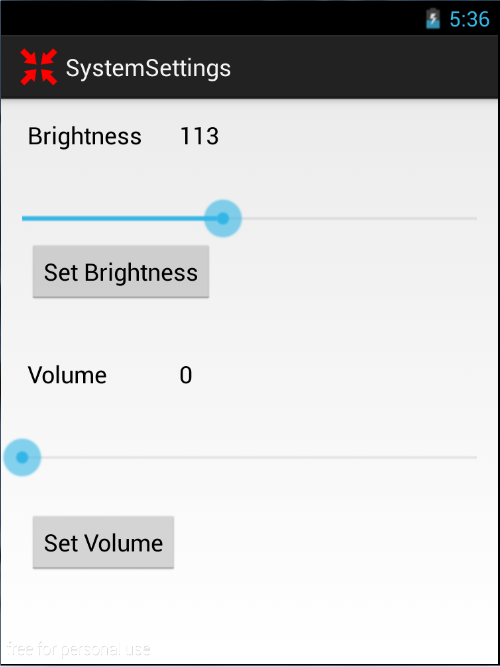
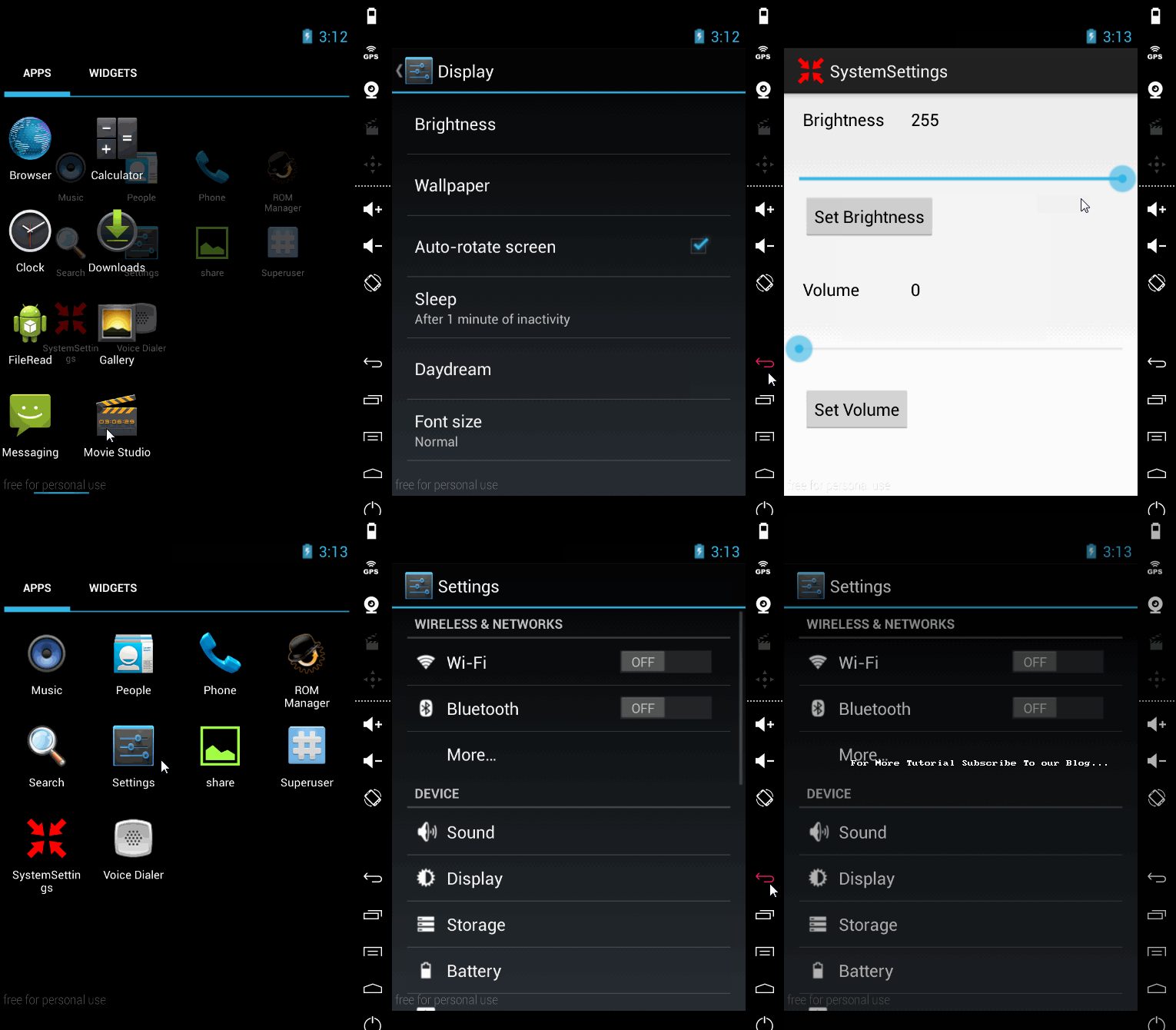
    2. Two Buttons and Two Text view. (Check below screen recording for further layout.)

activity_systemsetting_demo.xml
<RelativeLayout xmlns:android="http://schemas.android.com/apk/res/android"
    xmlns:tools="http://schemas.android.com/tools"
    android:layout_width="match_parent"
    android:layout_height="match_parent"
    android:paddingLeft="@dimen/activity_horizontal_margin"
    android:paddingRight="@dimen/activity_horizontal_margin"
    android:paddingTop="?attr/actionBarSize"
    android:paddingBottom="@dimen/activity_vertical_margin">
    <TextView
        android:id="@+id/textView1"
        android:layout_width="wrap_content"
        android:layout_height="wrap_content"
        android:layout_alignParentLeft="true"
        android:layout_alignParentTop="true"
        android:layout_marginLeft="20dp"
        android:layout_marginTop="15dp"
        android:text="Brightness"
        android:textAppearance="?android:attr/textAppearanceMedium" />
    <SeekBar
        android:id="@+id/Sbbrihgtness"
        android:layout_width="match_parent"
        android:layout_height="wrap_content"
        android:layout_alignParentLeft="true"
        android:layout_below="@+id/textView1"
        android:layout_marginTop="35dp"
        android:max="255"/>
    <SeekBar
        android:id="@+id/Sbvolume"
        android:layout_width="match_parent"
        android:layout_height="wrap_content"
        android:layout_alignParentLeft="true"
        android:layout_below="@+id/textView2"
        android:layout_marginTop="35dp"
        android:max="255" />
    <Button
        android:id="@+id/button1"
        android:layout_width="wrap_content"
        android:layout_height="wrap_content"
        android:layout_alignLeft="@+id/textView1"
        android:layout_below="@+id/Sbbrihgtness"
        android:text="Set Brightness" />
    <Button
        android:id="@+id/button2"
        android:layout_width="wrap_content"
        android:layout_height="wrap_content"
        android:layout_alignLeft="@+id/textView2"
        android:layout_below="@+id/Sbvolume"
        android:layout_marginTop="24dp"
        android:text="Set Volume" />
    <TextView
        android:id="@+id/textView2"
        android:layout_width="wrap_content"
        android:layout_height="wrap_content"
        android:layout_alignLeft="@+id/button1"
        android:layout_below="@+id/button1"
        android:layout_marginTop="41dp"
        android:text="Volume"
        android:textAppearance="?android:attr/textAppearanceMedium" />
</RelativeLayout>
Now let’s start some coding. I have created method for setting references and on click listener method for 2 buttons. In order to get seek bar value we having onChangeListner method of seekbar object. It consist 3 methods that you have to over ride.
  1. onStartTrackingTouch.
  2. onStopTrackingTouch .
  3. onProgressChanged.

We can get Seek bar value In onProgressChanged method. Now Paste below code in Main.java class file and make sure you put code as it is.


SystemSettingDemo.java
package com.androprogrammer.tutorials.samples;
import android.content.Context;
import android.media.AudioManager;
import android.os.Build;
import android.os.Bundle;
import android.provider.Settings;
import android.view.LayoutInflater;
import android.view.MenuItem;
import android.view.View;
import android.view.Window;
import android.widget.Button;
import android.widget.SeekBar;
import com.androprogrammer.tutorials.R;
import com.androprogrammer.tutorials.activities.Baseactivity;
public class SystemSettingDemo extends Baseactivity implements View.OnClickListener {
    private View view;
    protected Button Bbright,Bvolume;
    protected SeekBar brightness,volume;
    protected int set_brightness,set_volume;
    protected float value_brightness,value_volume;
    private AudioManager audioManager = null;
    @Override
    protected void onCreate(Bundle savedInstanceState)
    {
        super.onCreate(savedInstanceState);
        setReference();
        setToolbarElevation(7);
        setToolbarSubTittle(this.getClass().getSimpleName());
        getSupportActionBar().setDisplayHomeAsUpEnabled(true);
        Bbright.setOnClickListener(this);
        Bvolume.setOnClickListener(this);
        try {
            set_brightness = android.provider.Settings.System.getInt(getContentResolver(),
                    android.provider.Settings.System.SCREEN_BRIGHTNESS);
            brightness.setProgress(set_brightness);
        } catch (Settings.SettingNotFoundException e) {
            // TODO Auto-generated catch block
            e.printStackTrace();
        }
        brightness.setOnSeekBarChangeListener(new SeekBar.OnSeekBarChangeListener() {
            @Override
            public void onProgressChanged(SeekBar seekBar, int progress,
                                          boolean fromUser) {
                // TODO Auto-generated method stub
                set_brightness = progress;
            }
            @Override
            public void onStartTrackingTouch(SeekBar seekBar) {
                // TODO Auto-generated method stub
            }
            @Override
            public void onStopTrackingTouch(SeekBar seekBar) {
                // TODO Auto-generated method stub
            }
        });
        volume.setMax(audioManager
                .getStreamMaxVolume(AudioManager.STREAM_RING));
        volume.setProgress(audioManager
                .getStreamVolume(AudioManager.STREAM_RING));
        volume.setOnSeekBarChangeListener(new SeekBar.OnSeekBarChangeListener() {
            @Override
            public void onStopTrackingTouch(SeekBar seekBar) {
                // TODO Auto-generated method stub
            }
            @Override
            public void onStartTrackingTouch(SeekBar seekBar) {
                // TODO Auto-generated method stub
            }
            @Override
            public void onProgressChanged(SeekBar seekBar, int progress,
                                          boolean fromUser) {
                // TODO Auto-generated method stub
                set_volume = progress;
            }
        });
    }
    @Override
    public void setReference() {
        view = LayoutInflater.from(this).inflate(R.layout.activity_systemsetting_demo, container);
        audioManager = (AudioManager) getSystemService(Context.AUDIO_SERVICE);
        brightness = (SeekBar) view.findViewById(R.id.Sbbrihgtness);
        volume= (SeekBar) view.findViewById(R.id.Sbvolume);
        Bbright = (Button) view.findViewById(R.id.button1);
        Bvolume = (Button) view.findViewById(R.id.button2);
    }
    @Override
    public void onClick(View v) {
        // TODO Auto-generated method stub
        switch (v.getId()) {
            case R.id.button1:
                android.provider.Settings.System.putInt(getContentResolver(),
                        android.provider.Settings.System.SCREEN_BRIGHTNESS, set_brightness);
                break;
            case R.id.button2:
                audioManager.setStreamVolume(AudioManager.STREAM_RING, set_volume, 0);
                break;
            default:
                break;
        }
    }
    @Override
    public boolean onOptionsItemSelected(MenuItem item) {
        // Handle action bar item clicks here. The action bar will
        // automatically handle clicks on the Home/Up button, so long
        // as you specify a parent activity in AndroidManifest.xml.
        switch (item.getItemId()) {
            // Respond to the action bar's Up/Home button
            case android.R.id.home:
                finish();
                break;
        }
        return super.onOptionsItemSelected(item);
    }
}
To make this changes in settings you have to use certain permissions. So go to mainefest file and add these permissions.

<uses-permission android:name="android.permission.WRITE_SETTINGS" />
<uses-permission android:name="android.permission.MODIFY_AUDIO_SETTINGS" />

Screen Shot
Androprogrammer.com


So that’s it. Now run your application and see how it works. I hope you like my method and if you have certain thoughts or comments then post in below comment section.

Keep coding…