In android you can get user's latitude and longitude using two different providers.
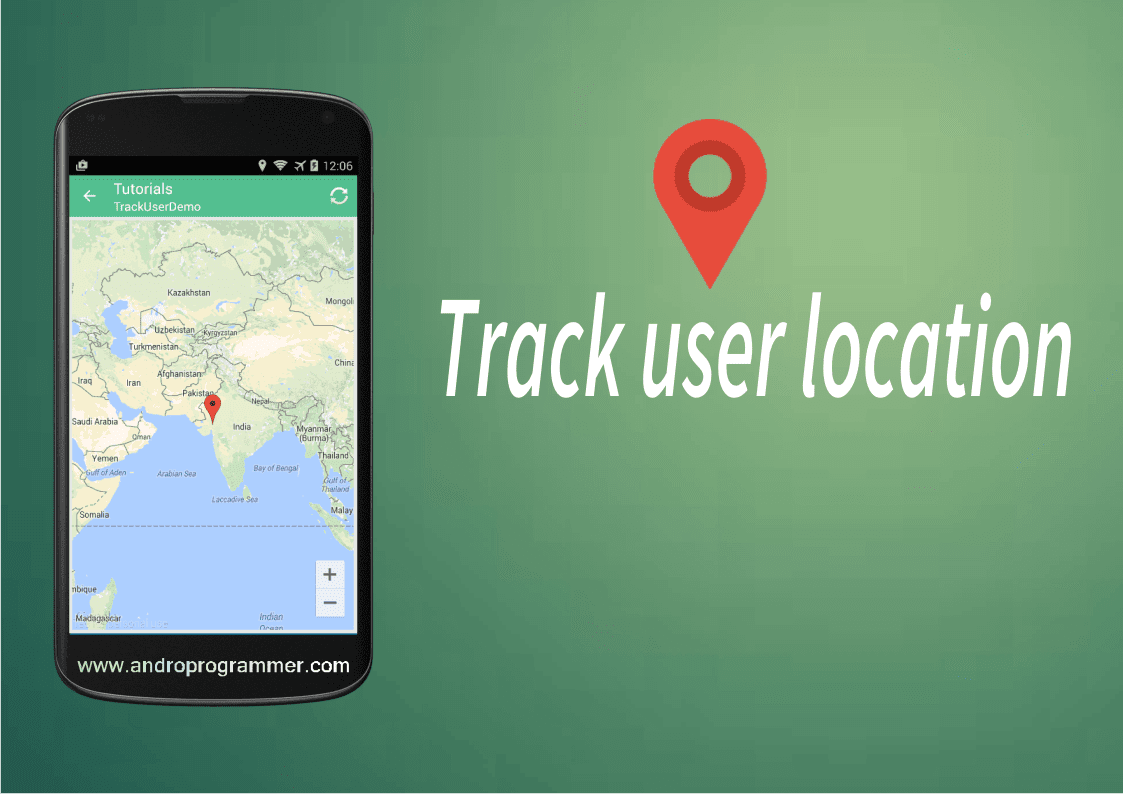
Steps
Step - 1 : First of all we will create Location listener which actually gives us user location. It is service class which runs in background and give us data on the basis of location change. you can get user location every seconds but it will increase app crash chances so it is better to define time interval and distance interval. i have used 1 min as time interval and 20 meter distance interval so my app won't make call for location each and every seconds. so now create a new class file and put below code inside it.
Step - 2 : To display Google map fragment inside your app you have to register your app at Google Developer console. and then get Map key. you need to set this key inside Android manifest file. otherwise your app may crash. For complete setup of Google Map api v2 you can find here.
if you have already registered your project you can find Map key at
Project > Apis & auth > Credentials.
Step - 3 : Now we need a class which actually start this service. so create a activity which start this service and get location data.in this activity i have used Google map fragment to show user location if you don't want to display lat long then toast it so you can verify that service is working and you are getting user location data.
Step - 4 : well now add/define service and google play meta data in AndroidManifest.xml file. put below code inside it.
Step - 5 : One More thing you have to add dependencies in app > build.gradle file. so put below code in it.
well now run the app if you are testing in emulator then make sure you have Google apps inside it. other wise Google Map will not work. i hope you understand full tutorial. if you have any questions let me know in below comment box. if you like this share it with your friends.
Get code from Github
Keep coding...
- Using Network
- Using GPS
Using Location Listener interface you can get perfect location. but there is no method which actually tells you which provider is best so its good practice to use both. Network provide lat long with good accuracy so i have used it as first option and after that gps.
This tutorial is comprise of get user location and also display it in map. so if you want both the thing go through full tutorial or if you want only users latitude and longitude then skip step 2. which is actually about getting Google map key and setup it in manifest file.Steps
Step - 1 : First of all we will create Location listener which actually gives us user location. It is service class which runs in background and give us data on the basis of location change. you can get user location every seconds but it will increase app crash chances so it is better to define time interval and distance interval. i have used 1 min as time interval and 20 meter distance interval so my app won't make call for location each and every seconds. so now create a new class file and put below code inside it.
GetUserLocation.java
package com.androprogrammer.tutorials.services;
import android.app.Service;
import android.content.Context;
import android.content.Intent;
import android.location.Location;
import android.location.LocationListener;
import android.location.LocationManager;
import android.os.Bundle;
import android.os.IBinder;
import android.util.Log;
/**
 * Created by Wasim on 21-03-2015.
 */
public class GetUserLocation extends Service implements LocationListener
{
    private Context context;
    private static final String TAG = "GPSGetUserLocation";
    // The maximum time that should pass before the user gets a location update.
    private static final long DEFAULT_DURATION = 1000 * 60 * 1; // 1 min
    // The default search radius when searching for places nearby.
    private static final long DEFAULT_RADIUS = 20; // 20 meters
    private LocationManager mLocationManager = null;
    private double latitude;
    private double longitude;
    // flag for GPS status
    //private boolean isGPSEnabled = false;
    // flag for network status
    //private boolean isNetworkEnabled = false;
    private Location location; // location values
    public GetUserLocation(Context context, boolean isGPSEnabled, boolean isNetworkEnabled)
    {
        this.context = context;
        getUserLocation(isGPSEnabled, isNetworkEnabled);
    }
    public GetUserLocation() {
    }
    public Location getUserLocation(boolean isGPSEnabled, boolean isNetworkEnabled)
    {
        try {
            if (mLocationManager == null)
            {
                mLocationManager = (LocationManager) context
                        .getSystemService(Context.LOCATION_SERVICE);
            }
                // First get location from Network Provider
                if (isNetworkEnabled)
                {
                    mLocationManager.requestLocationUpdates(
                            LocationManager.NETWORK_PROVIDER,
                            DEFAULT_DURATION,
                            DEFAULT_RADIUS, this);
                    Log.d(TAG, "Network");
                    if (mLocationManager != null) {
                        location = mLocationManager
                                .getLastKnownLocation(LocationManager.NETWORK_PROVIDER);
                        if (location != null) {
                            setLatitude(location.getLatitude());
                            setLongitude(location.getLongitude());
                        }
                    }
                }
                // if GPS Enabled get lat/long using GPS Services
                if (isGPSEnabled) {
                    if (location == null)
                    {
                        mLocationManager.requestLocationUpdates(
                                LocationManager.GPS_PROVIDER,
                                DEFAULT_DURATION,
                                DEFAULT_RADIUS, this);
                        Log.d(TAG, "GPS Enabled");
                        if (mLocationManager != null) {
                            location = mLocationManager
                                    .getLastKnownLocation(LocationManager.GPS_PROVIDER);
                            if (location != null) {
                                setLatitude(location.getLatitude());
                                setLongitude(location.getLongitude());
                            }
                        }
                    }
                }
        } catch (Exception e) {
            e.printStackTrace();
        }
        return location;
    }
    @Override
    public IBinder onBind(Intent intent) {
        return null;
    }
    @Override
    public void onLocationChanged(Location location)
    {
        if (location != null)
        {
            setLongitude(location.getLongitude());
            setLatitude(location.getLatitude());
        }
    }
    @Override
    public void onStatusChanged(String provider, int status, Bundle extras) {
    }
    @Override
    public void onProviderEnabled(String provider) {
    }
    @Override
    public void onProviderDisabled(String provider) {
    }
    public double getLatitude() {
        return latitude;
    }
    public void setLatitude(double latitude) {
        Log.d(TAG, "" + latitude);
        this.latitude = latitude;
    }
    public double getLongitude() {
        return longitude;
    }
    public void setLongitude(double longitude) {
        Log.d(TAG, "" + longitude);
        this.longitude = longitude;
    }
    @Override
    public void onDestroy()
    {
        Log.e(TAG, "onDestroy");
        super.onDestroy();
        if (mLocationManager != null)
        {
            // Remove update listener when you don't require
            mLocationManager.removeUpdates(this);
            mLocationManager = null;
        }
    }
}
Step - 2 : To display Google map fragment inside your app you have to register your app at Google Developer console. and then get Map key. you need to set this key inside Android manifest file. otherwise your app may crash. For complete setup of Google Map api v2 you can find here.
if you have already registered your project you can find Map key at
Project > Apis & auth > Credentials.
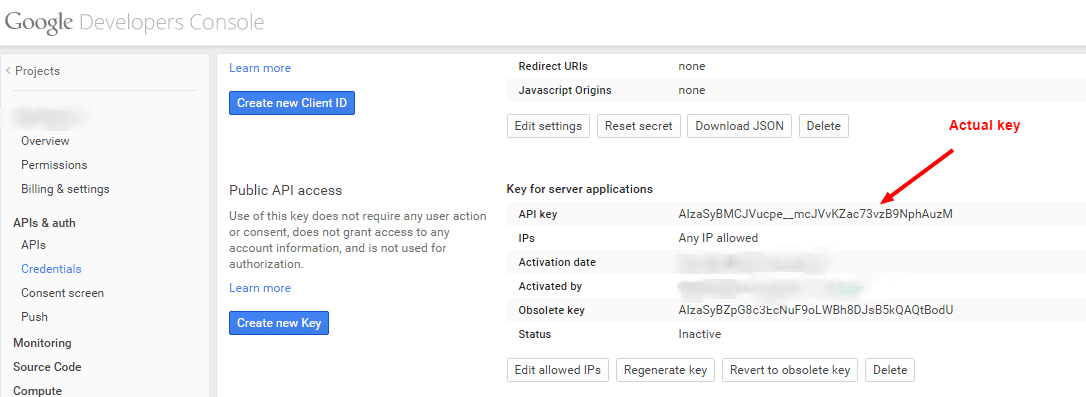 |
| Please do not use this key |
Step - 3 : Now we need a class which actually start this service. so create a activity which start this service and get location data.in this activity i have used Google map fragment to show user location if you don't want to display lat long then toast it so you can verify that service is working and you are getting user location data.
TrackUserDemo.java
package com.androprogrammer.tutorials.samples;
import android.app.AlertDialog;
import android.content.DialogInterface;
import android.content.Intent;
import android.location.LocationManager;
import android.os.Build;
import android.os.Bundle;
import android.transition.Slide;
import android.transition.Transition;
import android.util.Log;
import android.view.LayoutInflater;
import android.view.Menu;
import android.view.MenuItem;
import android.view.SubMenu;
import android.view.View;
import android.view.Window;
import android.widget.Toast;
import com.androprogrammer.tutorials.R;
import com.androprogrammer.tutorials.activities.Baseactivity;
import com.androprogrammer.tutorials.services.GetUserLocation;
import com.google.android.gms.maps.CameraUpdateFactory;
import com.google.android.gms.maps.GoogleMap;
import com.google.android.gms.maps.MapFragment;
import com.google.android.gms.maps.model.LatLng;
import com.google.android.gms.maps.model.MarkerOptions;
public class TrackUserDemo extends Baseactivity
{
    protected View view;
    // Google Map Object
    private GoogleMap googleMap;
    private LatLng userLatLng;
    private boolean IsFirstTimeLoad = true;
    private LocationManager mLocationManager;
    private static final String TAG = "TrackUserDemo";
    private static String RefreshMenu = "Refresh Map";
    @Override
    protected void onCreate(Bundle savedInstanceState)
    {
        if(android.os.Build.VERSION.SDK_INT >= Build.VERSION_CODES.LOLLIPOP)
        {
            getWindow().requestFeature(Window.FEATURE_CONTENT_TRANSITIONS);
            //set the transition
            Transition ts = new Slide();
            ts.setDuration(5000);
            getWindow().setEnterTransition(ts);
            getWindow().setExitTransition(ts);
        }
        super.onCreate(savedInstanceState);
        setReference();
 getSupportActionBar().setDisplayHomeAsUpEnabled(true);
        setToolbarTittle(this.getClass().getSimpleName());
        mLocationManager = (LocationManager) getSystemService(LOCATION_SERVICE);
        initilizeMap();
    }
    @Override
    protected void onResume()
    {
        super.onResume();
        if (!IsFirstTimeLoad)
        {
            if(!mLocationManager.isProviderEnabled(android.location.LocationManager.GPS_PROVIDER)) {
                showGpsAlertDialog();
            }
            else {
                Intent intent = new Intent(this, GetUserLocation.class);
                startService(intent);
                initilizeMap();
            }
        }
        else {
            IsFirstTimeLoad = false;
        }
    }
    private void initilizeMap()
    {
        try {
  // Display Toast message if you don't want to display google map using service.getLatitude(), service.getLongitude() methods
            if (googleMap == null) {
                googleMap = ((MapFragment) getFragmentManager().findFragmentById(R.id.map)).getMap();
                // check if map is created successfully or not
                if (googleMap == null)
                {
                    Toast.makeText(TrackUserDemo.this, "Sorry! unable to create maps", Toast.LENGTH_LONG).show();
                }
            }
            // getting GPS status
            boolean isGPSEnabled = mLocationManager
                    .isProviderEnabled(LocationManager.GPS_PROVIDER);
            // getting network status
            boolean isNetworkEnabled = mLocationManager
                    .isProviderEnabled(LocationManager.NETWORK_PROVIDER);
            GetUserLocation service = new GetUserLocation(this,isGPSEnabled,isNetworkEnabled);
            if (!isGPSEnabled)
            {
                showGpsAlertDialog();
            }
            userLatLng = new LatLng(service.getLatitude(), service.getLongitude());
            MarkerOptions usermarker = new MarkerOptions().position(userLatLng);
            // To remove old marker
            googleMap.clear();
            googleMap.addMarker(usermarker);
            googleMap.moveCamera(CameraUpdateFactory.newLatLngZoom(
                    new LatLng(service.getLatitude(), service.getLongitude()),
                    10.0f));
            googleMap.getUiSettings().setZoomControlsEnabled(true);
        } catch (Exception e) {
            Log.e(TAG, e.getMessage());
            //e.printStackTrace();
        }
    }
    private void showGpsAlertDialog() {
        AlertDialog.Builder alertDialogBuilder = new AlertDialog.Builder(TrackUserDemo.this);
        alertDialogBuilder.setTitle("Gps Setting");
        alertDialogBuilder.setMessage("Location data provider is disabled.\nPlease enable it to track location.");
        alertDialogBuilder.setPositiveButton(android.R.string.ok, new DialogInterface.OnClickListener() {
            @Override
            public void onClick(DialogInterface dialog, int which)
            {
                Intent myIntent = new Intent(android.provider.Settings.ACTION_LOCATION_SOURCE_SETTINGS);
                startActivity(myIntent);
            }
        });
        alertDialogBuilder.setNegativeButton(android.R.string.cancel,
                new DialogInterface.OnClickListener() {
                    @Override
                    public void onClick(DialogInterface dialog, int which)
                    {
                        dialog.dismiss();
                    }
                });
        AlertDialog alertDialog = alertDialogBuilder.create();
        alertDialog.show();
    }
    @Override
    public void setReference()
    {
        view = LayoutInflater.from(this).inflate(R.layout.activity_trackuser_demo,container);
    }
    @Override
    public boolean onCreateOptionsMenu(Menu menu)
    {
        // To display refresh button
        SubMenu btnRefresh = menu.addSubMenu(RefreshMenu);
        btnRefresh.setIcon(android.R.drawable.ic_popup_sync);
        btnRefresh.getItem().setShowAsAction(MenuItem.SHOW_AS_ACTION_ALWAYS);
        super.onCreateOptionsMenu(menu);
        return true;
    }
    @Override
    public boolean onOptionsItemSelected(MenuItem item) {
        // Handle Toolbar item clicks here. The Toolbar will
        // automatically handle clicks on the Home/Up button, so long
        // as you specify a parent activity in AndroidManifest.xml.
        switch (item.getItemId()) {
            // Respond to the action bar's Up/Home button
            case android.R.id.home:
                finish();
                break;
        }
        if (item.getTitle() == RefreshMenu)
        {
            initilizeMap();
        }
        return super.onOptionsItemSelected(item);
    }
}
activity_trackuser_demo.xml
<RelativeLayout xmlns:android="http://schemas.android.com/apk/res/android"
    xmlns:tools="http://schemas.android.com/tools"
    android:layout_width="match_parent"
    android:layout_height="match_parent"
    android:paddingLeft="@dimen/activity_horizontal_margin"
    android:paddingRight="@dimen/activity_horizontal_margin"
    android:paddingTop="?attr/actionBarSize"
    android:paddingBottom="@dimen/activity_vertical_margin"
    tools:context="com.androprogrammer.tutorials.samples.TrackUserDemo">
    <fragment
        android:id="@+id/map"
        class="com.google.android.gms.maps.MapFragment"
        android:layout_width="match_parent"
        android:layout_height="match_parent"/>
</RelativeLayout>
Step - 4 : well now add/define service and google play meta data in AndroidManifest.xml file. put below code inside it.
AndroidManifest.xml
<!-- IMPORTANT ! DO NOT FORGET THIS META-DATA !!! -->
        <meta-data
            android:name="com.google.android.gms.version"
            android:value="@integer/google_play_services_version" />
        <meta-data
            android:name="com.google.android.maps.v2.API_KEY"
            android:value="your_key" />
        <uses-feature
            android:glEsVersion="0x00020000"
            android:required="true" />
<service android:name=".services.GetUserLocation" />
Step - 5 : One More thing you have to add dependencies in app > build.gradle file. so put below code in it.
build.gradle
dependencies {
// To add toolbar and material theme.
compile 'com.android.support:appcompat-v7:21.0.3'
compile fileTree(include: ['*.jar'], dir: 'libs')
// To use Google map and other services.
compile 'com.google.android.gms:play-services:6.1.71'
}
well now run the app if you are testing in emulator then make sure you have Google apps inside it. other wise Google Map will not work. i hope you understand full tutorial. if you have any questions let me know in below comment box. if you like this share it with your friends.
Get code from Github
Keep coding...
0 comments :
Post a Comment